

Appearance
Pyro and fireworks
This page shows you how to fire smoke and sparks from your drones: define the products, say which drones carry them, and schedule each ignition on the timeline.
Pyro means the fireworks mounted on a drone. A gerb is a charge that pours out falling sparks. An airburst is a flash that leaves a cloud of coloured smoke.
There are three steps:
- List your products in the Pyro catalog.
- Load them onto drones in the Launch Pad's Pyro loadout.
- Fire them with Ignite clips on a Pyro channel.
Step 1: the Pyro catalog
The catalog is this show's list of products. Open it from the Pyro catalog button in the top bar, or with Catalog… on an Ignite clip, or Pyro catalog… on the Launch Pad.
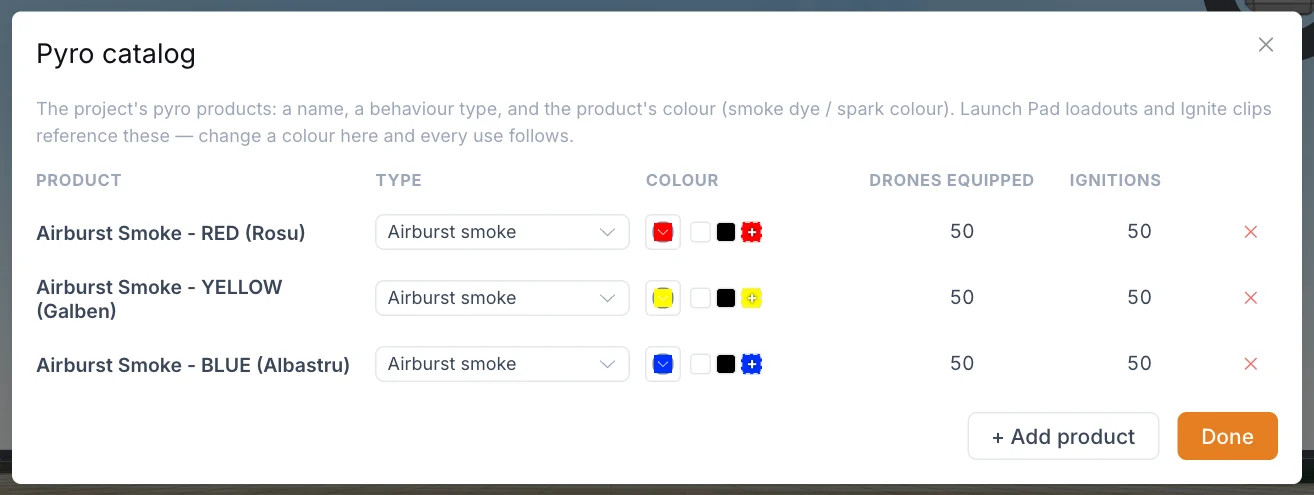
- Click + Add product. A new row appears as an Airburst smoke product.
- Click its name to rename it.
- Choose its Type.
- Set its Colour.
- Click Done.
| Type | What it does | Burn | Size |
|---|---|---|---|
| Airburst smoke | A flash, then smoke that drops below the burst and blooms into a cloud. The smoke leaves the drone at ignition. | Cloud lasts about 25 s | Drops about 4 m |
| Gerb (sparks) | Falling sparks that ride along with the drone. Warm colours burn long and fade like gold. Cool colours burn shorter, like silver. | About 5 s | Sparks fall about 5.5 m |
The Drones equipped and Ignitions columns show how much each product is used. The ✕ button removes a product, and warns you first if it is in use. References to a removed product stop firing.
Smoke colours
Colour belongs to the product, not to the clip, so make one product per colour. Change it in the catalog and every use follows. The built-in Daytime smoke airburst product, offered while the catalog is empty, has a Smoke colour field on the clip instead.
Step 2: the Pyro loadout
Each drone has three hardware channels, CH 1, CH 2 and CH 3. Each channel holds one charge and fires once. The loadout says what each drone carries.
- Select the Launch Pad and find Pyro loadout in its properties.
- Click + Add drone range.
- Set the first and last drone number under Drones. Both numbers are included.
- Choose a product for CH 1, CH 2 and CH 3.
- Repeat for other ranges.
The section sits in the Launch Pad properties:
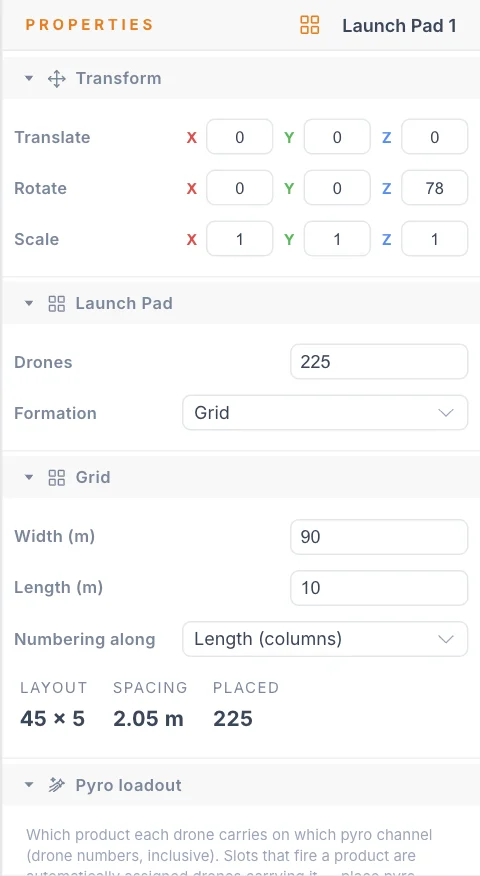
The line below the rows shows how many drones carry pyro. If two ranges share a drone, the first row applies. Pyro drones can sit anywhere on the grid. To check your loadout, turn on Pyro loadout colors in the viewport settings, which tints each drone by what it carries.
Step 3: Ignite clips
- Select a formation, or a shape inside one. You can also select the Launch Pad.
- In the timeline, click + (Add channel) and choose Pyro.
- Right-click the Pyro 1 lane at the ignition time and choose Add Ignite.
- Click the clip and set it up in the Properties panel.
The clip's settings look like this:
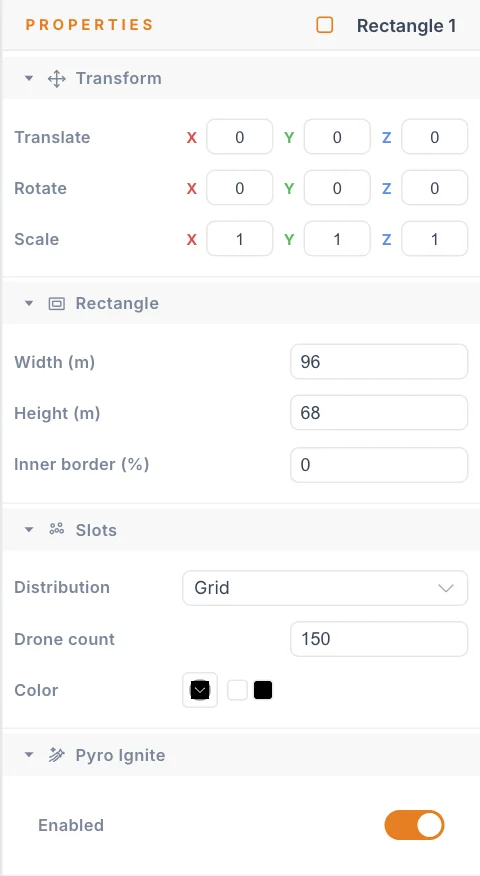
| Setting | What it does | Default |
|---|---|---|
| Enabled | Off: the clip does not fire. | On |
| Product | The product to fire, chosen from the catalog. | Gerb - gold sparks (built-in) |
| Pick slots | Which slots fire. Use it like slot picking for colours. All clears the selection. | All slots |
| Timing | When each slot fires, see below. | All at once |
Under Product, a line tells you how many drones carry it. Zero means nothing can fire.
On a Launch Pad, the clip always fires All drones, because the bake can change which drone flies which slot. To fire a shape or part of one, put the clip on the formation or shape.
Timing
| Timing | What happens |
|---|---|
| All at once | Every selected slot ignites together at the clip start. The clip length has no effect. |
| Sweep - linear (2 points) | Ignitions ripple along the line from Start to End. Slots nearest the start fire first. |
| Sweep - radial (from centre) | Ignitions spread outward from Centre, reaching Radius (m) at the end. |
The sweep modes add these settings:
| Setting | What it does | Default |
|---|---|---|
| Start, End | Ends of the line, in metres. Use ◉ to drag them in the viewport. | (-10, 0, 0) and (10, 0, 0) |
| Centre | Starting point of a radial sweep. | (-10, 0, 0) |
| Radius (m) | Reach of a radial sweep. Minimum 0.1. | 10 |
| Sweep time (s) | How long the ripple takes. 0 uses the clip length. | 0 |
The clip sets when a charge ignites, not how long it burns. The product sets the burn time, so a 25 s smoke cloud can outlast its clip. Effects hang straight down, with no direction setting.
How hardware channels are used
The clip chooses a product, not a channel.
- Each drone fires whichever of its channels holds that product.
- Slots that fire a product are assigned drones carrying it automatically. You never pair them by hand.
- If a drone holds the same product on two channels, it can fire twice, earliest ignition first.
- An ignition with no charge left does not fire. A channel can never fire twice.
- If fewer drones carry a product than slots fire it, the slots flown by other drones do not fire.
A clip's title on the timeline shows its product and its slots, like Gold Gerb · 40 slots.
Preview
Smoke and sparks appear in the viewport as you play or scrub, in the same place and time each pass. Gerbs follow their drone. Smoke stays where it burst, and trails behind a moving drone. While playing, with the sound on, each ignition also makes a boom. Scrubbing is silent.
Example: painting a flag in smoke
The daytime example, BIAS 2026 - Romanian Flag - Smoke Show, flies 150 drones. Three Ignite clips run from 40 s to 65 s with blue, yellow and red smoke to paint the Romanian flag in the sky.
Follow it step by step in Day show with fireworks, and read Daytime shows for more on working without the dark.
Pyro safety
The app shows you how pyro looks. It does not make it safe.
- The app only counts charges. The safety checks warn when clips fire more of a product than your loadout holds. They do not know where a charge burns or what is around it, so review every clip yourself. Use the Pyro report to check the plan.
- Plan for what falls. Sparks fall about 5.5 m and smoke drops about 4 m. Keep that space clear of people, buildings, the ground and other drones below the firing drones.
- Plan for what drifts. Smoke hangs for around 25 s and moves with the wind, which the preview does not know about.
- Use real product data. The burn and size figures above are fixed templates, not your supplier's figures. Check them against the data sheet for your product.
- Follow local rules. Pyrotechnics need the right permits and qualified people. Those rules come first.
Tips
- Name each product after the real item, so the loadout and the report read clearly.
- Fire pyro while drones hold a formation. Slots move with the formation, so a moving picture carries gerbs with it and spreads the smoke.
- Give each sweep a realistic Sweep time (s). A slow ripple reads better than a sudden salvo.
Next
See Algorithm Bypass, then prepare for delivery with the Pyro report.