

Appearance
Baking and playback
On this page you learn how to turn your design into final drone flight paths, watch the result, load older versions, and recover when a bake fails.
What baking does
While you edit, the viewport (the large 3D view) shows a quick preview. Drones fly simple straight lines and can pass through each other. A bake replaces that preview with the real thing.
When you bake, the Celestium servers:
- decide which drone goes to which slot
- work out a route for every drone, 30 times per second, for the whole show (routing)
- keep drones apart and within the speed and acceleration limits you set (limits)
- work out the final colour of every drone at every moment
- store the result as a new numbered version
Your computer stays free while this happens. Only a baked show can become a video or flight files, so baking is the step between design and delivery.
Bake your show
- Open your show in the editor.
- Click Bake Show in the top bar.
- Wait while the button counts up, first Baking… and then Loading…, each with a percentage.
- When it finishes, the app enters Bake mode by itself.
The playhead (the marker for the current moment on the timeline) stays where you left it, and playback is paused. You land on the moment you were working on.
A bake always includes your latest saved edits
The bake engine works from the saved show, so Bake Show saves any pending edits first. If that save fails, you see "Could not save your latest changes" and the bake does not start. Changes you make after the bake has started are not part of that version.
If you opened a local draft, you see "Open a saved project to bake it". A bake needs a saved project.
Bake button states
| The button shows | Meaning | What you can do |
|---|---|---|
| Bake Show | Ready | Click to bake. Use the small arrow beside it to load a version. |
| Baking… and a percentage | The server is working | Wait. The button is disabled. |
| Loading… and a percentage | The first part of the bake is coming down | Wait. The button is disabled. |
| Bake failed and retry | The last bake did not finish | Hover to read the reason, then click to try again. |
| Bake v3 and Exit | You are in Bake mode, watching version 3 | Click Exit to go back to editing. |
Bake mode
Bake mode is a read-only player for one baked version. Nothing you do here changes your design.
When Bake mode opens:
- The viewport plays the baked drones and switches to Drones view. The move, rotate and scale buttons are hidden.
- The left panel shows the Drones tab only.
- The Statistics panel replaces the Properties panel on the right.
- A Checks tab appears in the bottom panel.
- The timeline is read-only, and shows every channel that has clips, across the whole show.
- The Add button and the import items in the Project menu are disabled.
- The Project menu offers Flight paths…, Render video… and Pyro report.
Press play as usual. The show streams from the server while it plays, so you do not wait for a full download.
The banner
A banner at the top of the viewport reminds you what you are watching.

| The banner says | Meaning |
|---|---|
| Simulated bake v3 · 150 drones · not a live preview | Playing normally |
| Buffering… | The next part of the show is still loading. Drones appear again when it arrives. |
| This baked show can’t be played (old or unavailable format). Exit and re-bake. | This version cannot be played. Click Exit and bake again. |
Exit Bake mode
Click Exit in the banner or in the top bar. You are back in the live editing preview with your design as you left it.
The viewport stays in Drones view. Click Slots in the top bar to see your slots and outlines again.
If you edit after a bake, the design and the bake no longer match. Bake again to see the changes in the baked show.
Bake versions
Each bake gets a new version number, and older versions are kept. You can go back to any finished version.
Load an older bake
The arrow only appears outside Bake mode, so click Exit first if you are in it.
- Click the small arrow next to Bake Show.
- Look through the list. It shows up to the 10 newest finished bakes, each with its version, number of drones, length and date.
- Click a version to load it.
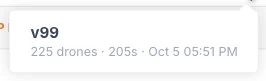
If you have more than 10 finished bakes, More… at the bottom opens the Baked versions dialog.
| Column | What it shows |
|---|---|
| Version | The version number |
| Created by | Who started the bake |
| Date | When it was started |
| Drones | The number of drones |
| Duration | The length of the show in seconds |
| Status | queued, running, ready or failed |
Only a ready bake has a Load button.
Loading an older bake does not change your design. It only changes what plays. The Project menu header shows which one is loaded, for example bake v3 loaded.
Your dashboard thumbnail
Each time a bake finishes, the server refreshes the project thumbnail on the dashboard from it, in the background. You can close the app while it does.
Statistics
The Statistics panel replaces the Properties panel in Bake mode. It measures the real drone paths, not your slots.
Until the whole bake has loaded, the panel shows a short explanation instead of numbers. Give it a moment.
Realtime follows the playhead and shows the values at the current moment.
| Row | What it shows |
|---|---|
| Min Distance | The closest two drones are right now |
| Max Up / Down | The fastest climb and descent right now |
| Max Speed | The fastest drone right now |
| Max Accel | The hardest acceleration right now |
| Altitude | The highest drone right now |
Overall shows the extreme of each value across the whole show.
| Row | What it shows |
|---|---|
| Min Distance | The closest two drones ever get |
| Max Hor Speed | The fastest sideways speed |
| Max Up / Down | The fastest climb and descent |
| Max Speed | The fastest speed in any direction |
| Max Accel | The hardest acceleration |
| Altitude Range | The lowest and highest altitude |
| Duration | The length of the show |
Find the drones behind a number
- Click a row in Overall, except Duration.
- The playhead jumps to that moment. The drones involved turn amber and the others dim.
- Read the note under the banner, for example Analyzing drones #12 & #48 · Min Distance. For Min Distance it names the closest pair.
- Click Exit analyze when you are done.
Compare these numbers with your limits, or use the charts in the Checks tab.
When a bake fails
The button shows Bake failed and a red message appears, starting with "Bake failed:" and followed by the reason. It stays until you close it.
- Read the reason. To read it again, hover over the button.
- Check the status bar at the bottom of the editor. It should say Saved.
- Check your internet connection.
- Click the button to bake again.
If the reason says the bake was interrupted, the server stopped during your bake. Bake again.
A failed attempt still uses a version number, so numbers can skip in the arrow's list. It appears as failed in the Baked versions dialog, and you cannot load it. Your design is not affected.
If the same reason keeps coming back, note the exact text before you ask for help.
When a bake looks wrong
- Drones do not leave the launch grid. The Launch Pad needs a Takeoff or Track clip with a formation on it. See Drone events.
- Some drones never join a formation. The show has more drones than free slots, and the extra drones hold.
- Numbers are over a limit. See How to fix each kind of violation.
- The show looks like an old version. You may have loaded an older bake, or edited since the last one. Bake again.
More answers are in Troubleshooting and FAQ.
Next
Render a video for your client, or export FSP flight files for the drones.