

Appearance
Launch Pad
On this page you will set how many drones your show has, where they start, and the flight limits they must obey.
A Launch Pad is your fleet on the ground. It holds the drones, the grid they stand on, and their speed and distance limits. Every show needs at least one. It also carries the timeline clips that make the drones fly, such as Takeoff, Track and Return. See Drone events.
To add one, open the Add menu and choose Launch pad. It starts with 100 drones at origin level.
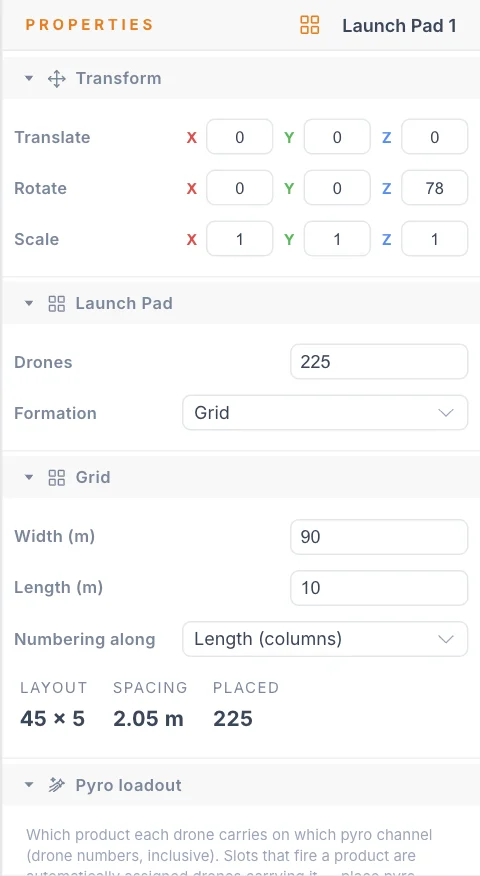
A Launch Pad stays at the top level of the Hierarchy, outside the Show. You cannot nest it in a group.
Place the pad
Place the pad where the real launch site is, relative to the show.
The pad must stay flat, so the move, rotate and scale tools are limited:
- Move works on the ground plane only.
- Rotate turns it around the vertical axis only.
- Scale works on the ground plane only, and changes the size of the grid instead of stretching the drones.
Drones and grid
The Launch Pad section sets the number of drones.
| Setting | What it does | Default |
|---|---|---|
| Drones | How many drones this pad holds. A show's pads have a shared limit, and the field tells you if you reach it. | 100 |
| Formation | The layout on the ground. Grid is the only choice for now. Circle (soon) and Polygon (soon) are not available yet. | Grid |
The Grid section sets where the drones stand. Its Sizing setting gives you two ways to do that:
- Fit to size: you give the size of a rectangle, and the app picks the rows and columns that spread the drones most evenly across it.
- Rows and columns: you give the exact grid and the distance between drones. Use this to match a real launch site.
| Setting | What it does | Default |
|---|---|---|
| Sizing | Fit to size or Rows and columns. | Fit to size |
| Width (m) | With Fit to size: the rectangle's size east to west, before any rotation. Minimum 0.1. | 40 |
| Length (m) | With Fit to size: the rectangle's size north to south, before any rotation. Minimum 0.1. | 40 |
| Rows | With Rows and columns: how many rows run across the grid. | The current layout |
| Columns | With Rows and columns: how many drones fit in one row. | The current layout |
| Column spacing (m) | With Rows and columns: the distance between neighbouring drones in a row. | The current spacing |
| Row spacing (m) | With Rows and columns: the distance between neighbouring rows. | The current spacing |
| Skip cells | With Rows and columns: how many cells stay empty before the first drone, so two pads can share one grid. | 0 |
| Numbering along | The direction drone numbers run: Width (rows) or Length (columns). Positions stay the same. Only the numbers change, which affects flight file names and colours based on drone number. | Width (rows) |
Three read-outs show the result:
| Read-out | Meaning |
|---|---|
| Layout | Columns × rows. |
| Spacing | The smallest distance between neighbouring drones. |
| Placed | How many drones the grid holds. |
With Fit to size, the drones reach the edges of the rectangle. With the defaults, 100 drones on 40 m by 40 m gives a layout of 10 × 10 and a spacing of 4.44 m. If the last row is short, it is centred.
With Rows and columns, Drones decides how much of the grid is used. Drones fill the grid one row at a time from the first corner, so the last row can stop part way. For example, 8 rows of 12 with 90 drones gives 7 full rows and 6 drones in the eighth. If the drones don't fit, the grid adds rows at the same spacing and tells you. Dragging the scale tool changes the spacing.
Flight constraints
The Flight section holds the limits for this pad's drones. The bake uses them when it plans routes, and the safety checks measure the finished flight against them.
| Setting | What it does | Default |
|---|---|---|
| Horizontal speed (m/s) | Fastest sideways speed. | 5 |
| Up speed (m/s) | Fastest climb. | 3 |
| Down speed (m/s) | Fastest descent. | 2.5 |
| Max 3D speed (m/s) | Fastest speed in any direction. | 6 |
| Acceleration (m/s²) | How quickly a drone can change speed. | 3 |
| Min separation (m) | The smallest allowed distance between the centres of two drones in flight. Minimum 0.1. | 2 |
Match your real aircraft
These numbers must describe what your drones can safely do. Raising them does not make a drone capable of it. Lowering Min separation (m) brings drones closer together and removes safety margin. Check Flight limits and separation before you change them.
Keep the grid Spacing above Min separation (m), so drones already respect the limit on the ground.
A Takeoff, Track or Return clip can override these limits for its own time window. See Drone events.
Ground placement
The Ground section seats the pad on the real terrain. It needs the 3D map on and loaded, because it reads the height from the map. With the map off there is no ground to read, and the pad stays at about origin level.
| Setting | What it does | Default |
|---|---|---|
| Keep flat | On keeps every drone position at one level, high enough to clear the highest ground under the pad. Off lets each position follow its own bit of ground. | On |
- Turn on 3D map and wait for it to load around the pad.
- Move the pad to its final position.
- Click Conform to ground. The app confirms how many positions it placed.
- If you move the pad again, click Conform to ground again. It does not update by itself.
Pyro loadout
The Pyro loadout section says which pyrotechnic product each drone carries. Skip it for a show without pyro.
Each row covers a range of drone numbers, and both ends are included. A drone has three hardware channels: CH 1, CH 2 and CH 3.
- Click + Add drone range.
- Set the first and last drone number in the Drones row.
- Choose a product for each channel you use. The empty option leaves that channel unloaded.
- To define products, click Pyro catalog….
A line under the rows shows how many drones carry pyro. You can place pyro drones anywhere on the grid: formation slots that fire a product are given drones that carry it. See Pyro and fireworks.
Use several pads
A show can have more than one Launch Pad, for example two launch sites on either side of a stage. Add another with the Add menu.
- Each pad has its own grid, flight limits, ground placement and drone clips.
- The fleet is all pads together. Drones are numbered through the pads in Hierarchy order.
- A shape added from the Add menu starts with one drone per fleet drone, counting every pad.
Two pads can fly to the same Formation group at the same time. They share its slots, the points a drone flies to, and never use one twice. Clips claim slots in start-time order: the earliest clip takes the best slots for its drones, and the next clip gets what is left. Drones with no free slot hold where they are. To control this, make sure the group has enough slots for both pads.
Tips
- Set Drones to your real fleet size before you add shapes. New shapes pick up that number.
- Use the spacing your ground crew will really lay out. The flight plan starts from these positions.
- Move a pad only before you bake, or bake again after moving it.
Next
Give the drones somewhere to go with Formations and groups.