

Appearance
Colours Manipulator
This page shows you how to change colours that already exist without repainting them. Use it to turn part of an imported animation blue, wash out a section or brighten a logo.
In the app, this tool is called Adjust. It keeps the colour beneath and shifts it, so any blinking or brightness animation in that colour survives. Nothing is changed for good: disable or delete the clip and the original colour returns.
Add an Adjust clip
Adjust changes the colour beneath it, so it must sit above that colour. Two source clips cannot overlap on one channel, so it usually needs its own channel.
- Select the element in the Hierarchy panel.
- In the timeline, click + (Add channel) and choose Colors. The new lane sits on top of the others.
- Right-click the new lane and choose Add Adjust.
- Drag the clip over the time you want to change. A new clip is 4 s long.
- Click the clip. Its settings appear in the Properties panel as Adjust (Colors).
- Click Pick slots to limit it to part of the shape. A new clip covers every slot.
If the colour comes from the element itself, such as an imported path or a point cloud, the clip can go on any Colors channel.
Settings
| Setting | What it does | Default |
|---|---|---|
| Hue | Shift hue by turns every colour around the colour wheel. Set hue to gives every slot the same hue. | Shift hue by |
| Hue shift (°) | How far to turn the hue, -180 to 180. Shown for Shift hue by. | 0 |
| Target hue | The hue to use. Shown for Set hue to. | Red |
| Saturation × | Multiplies colour strength, 0 to 2. 0 gives grey, 1 changes nothing. | 1 |
| Lightness + | Adds to lightness, -1 to 1. 0 changes nothing. | 0 |
| Paint drones | Off: the clip paints nothing and only feeds an effect. See palette sources. | On |
A new clip changes nothing until you edit a setting. Set hue to keeps the saturation and lightness of each slot, so it recolours an animation and keeps its blinking.
Black has no hue. A dark slot stays dark under Hue and Saturation ×, and only Lightness + can lift it. Since drones are dark by default, Adjust needs a colour beneath it to work on.
Shared settings
Adjust has the same controls as other colour clips: Enabled, Pick slots, Clear, Opacity, Fade in (s), Fade out (s) and Fade ease. They look the same as on this Solid clip:
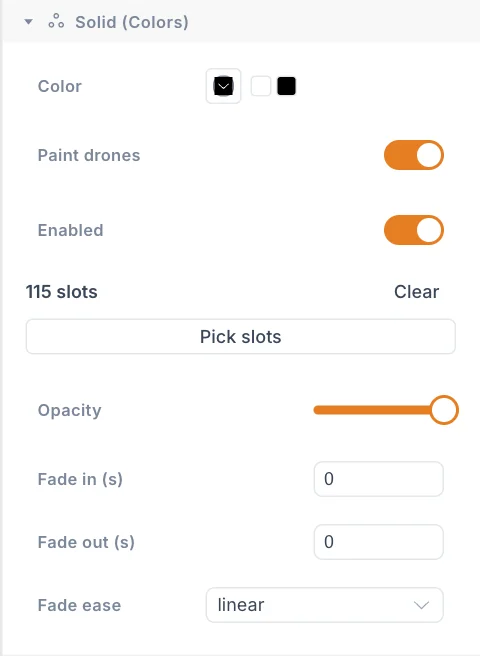
Use the fades to ease into the new colour, and Opacity to mix between the original and the adjusted colour. See Choose the slots for picking.
Examples
| Goal | Settings |
|---|---|
| Turn part of an animation blue | Set hue to with a blue Target hue, then Pick slots |
| Wash out to white | Saturation × 0, Lightness + 0.5 |
| Dim without changing the colour | Lightness + -0.3 |
| Cycle to another colour family | Shift hue by with Hue shift (°) 180 |
Tips
- Put Adjust on the top lane. Lanes above it paint over its result. See Which colour wins.
- Add Fade in (s) and Fade out (s) so the change blends in.
- An effect can list an Adjust clip under Colour sources, like any other source.
Next
Make shapes move on their own with Motion effects.