

Appearance
Render a video
On this page you learn how to turn a baked show into an MP4 video file, with its soundtrack, ready to send to a client.
Chrome or Edge
Video export needs Chrome or Edge. In a browser that cannot do it, the dialog shows Video export needs Chrome or Edge. and has no Export button. Open the project in Chrome or Edge instead.
The video is made inside your browser and runs offline, frame by frame, not in real time. It does not have to play the show at normal speed, so it usually takes less time than the show lasts. You can watch it being drawn in the viewport (the large 3D view).
Render your video
You need a baked show first. If the Project menu says Flight paths and video need a bake, see Baking and playback.
- Load the bake you want. You must be in Bake mode.
- Move the view to the framing you want. The camera stays exactly there for the whole video.
- Click the show name at the top left to open the Project menu.
- Click Render video…
- Choose your settings in the Export video dialog.
- Check the size estimate at the bottom of the dialog.
- Click Export.
- Wait for the download. The file is named after your show and bake version, and ends in
.mp4.
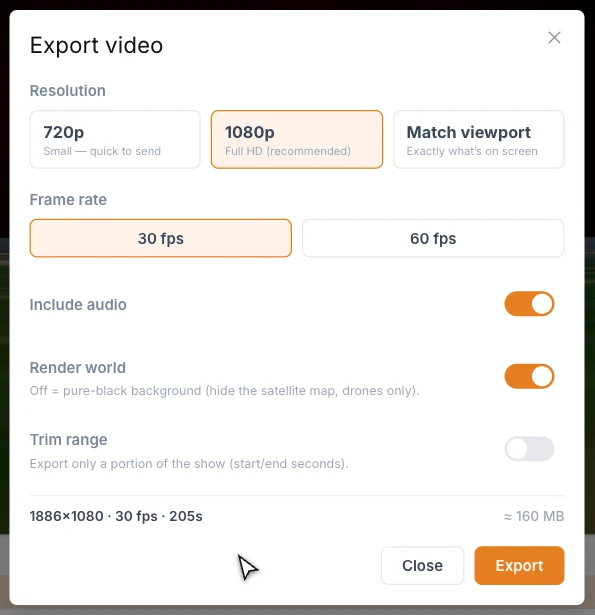
Settings
| Setting | What it does | Good starting value |
|---|---|---|
| Resolution | 720p is smaller and quick to send. 1080p is Full HD. Match viewport uses exactly what is on screen, up to 3840 × 2160. | 1080p, the default |
| Frame rate | 30 fps or 60 fps. A higher rate gives smoother motion and a larger file. | 30 fps, the default |
| Include audio | Adds your soundtrack. See Sound. | On, the default |
| Render world | Shows the map behind the show. When off, the background is pure black and only the drones show. | On, the default |
| Trim range | Exports part of the show. Enter the start and end in seconds. | Off, the default |
The width of 720p and 1080p follows the shape of your viewport, so a wide window gives a wide video.
The line at the bottom sums up your choice, for example 1920×1080 · 30 fps · 120s, and gives an estimated file size.
While it renders
The dialog shrinks to a small progress card so you can see the viewport behind it. It goes through Preparing…, Rendering audio…, Rendering video… and Finishing…, and shows a percentage and a frame count.
To stop, click Cancel. While a render runs you cannot close the dialog any other way, and trying shows "Cancel the export first".
When it ends, you see Video exported, the file downloads, and the playhead goes back to where it was, paused.
Sound
The soundtrack is added when all of these are true:
- The show has an Audio element with at least one clip.
- The audio is not muted. The mute button is in the timeline controls.
- Include audio is on.
If Include audio cannot be switched on, the dialog tells you why.
| The dialog says | What to do |
|---|---|
| No soundtrack on this show. | Add an Audio element and a clip, or export without sound. |
| Audio is muted | Click the mute button in the timeline controls, then open the dialog again. |
| Audio encoding unavailable in this browser. | Use another browser, or export without sound. |
With Trim range on, the sound is cut to the same part of the show, so picture and sound stay in sync.
Tips
- The camera does not move during the render. To get several angles, render several videos and cut them together.
- For a daytime or map-based show, keep Render world on. For a clean drones-only shot, turn it off.
- Use Trim range for a short preview before you render a long show.
Next
Export FSP flight files for the drones.