

Appearance
Share formations
On this page you learn how to save a Formation Group as one file and bring it into another show. This lets you reuse a logo or a finished scene without rebuilding it.
A Formation Group is the container that holds the shapes, text and other elements of one picture. The file format is .fsf.
What the file contains
An .fsf file holds the Formation Group and everything inside it:
- all its member elements and their settings
- their clips, such as colours and motion effects
- the flight data of animated paths
- the source pictures and SVG drawings
Everything travels in that one file, so the other show does not need your original files.
The Launch Pad is not part of a formation. Its Track clips stay in the original show.
Export a Formation Group
You can do this in two ways, in the editor. Neither works in Bake mode, so click Exit first if you are in it.
From the Hierarchy panel:
- Right-click the Formation Group.
- Click Export Formation (.fsf).
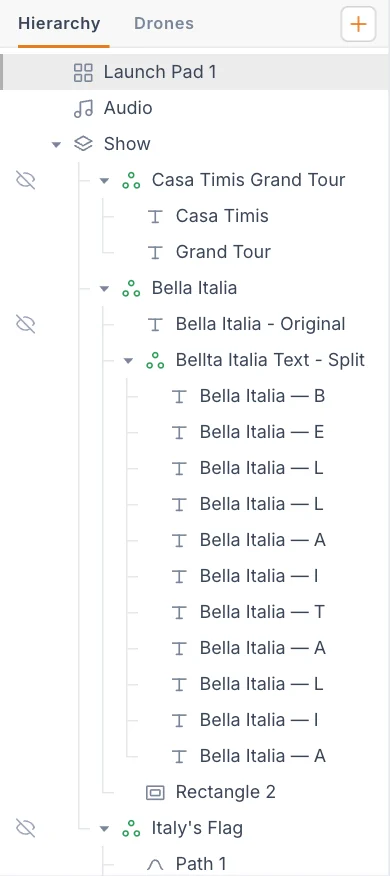
From the Project menu:
- Select the Formation Group.
- Click the show name at the top left to open the Project menu.
- Under Export · design, click Selected formation.
Selected formation stays greyed out until a Formation Group is selected. A shape on its own cannot be exported this way.
Your browser downloads a file named after the group, such as Logo.fsf.
Import it into another show
Open the show that should receive the formation, then use either way.
From the Hierarchy panel:
- Right-click the Show element.
- Click Import Formation Group…
- Choose the
.fsffile.
From the Project menu:
- Click the show name at the top left.
- Click Import formation…
- Choose the
.fsffile.
A message confirms the import, and the group appears under the Show, selected. Import formation… is disabled in Bake mode.
Use the right import
Import SVG / image… is a different command. It reads pictures only, and refuses an .fsf file with "Unsupported file".
After importing
The drones do not fly to the new group until you tell them to.
- Check the position of the group in the viewport, and move it if needed.
- Add or pick a Track clip on the Launch Pad. See Drone events.
- Drag the Formation Group onto the clip.
- Check the Safety button. The new group may be tighter or bigger than this show allows.
If the import fails
| Message | What it means |
|---|---|
| "Not a valid formation file" | The file is not an .fsf file, or has no content. |
| "Could not read that file" | The file is damaged or is not readable as a formation. |
| "Nothing to export in that formation" | Shown on export, when the selection cannot be packaged. Select the Formation Group itself. |
Tips
- Name the group well before exporting, because the file and the imported group both take that name.
- Keep a small library of
.fsffiles for logos and text you reuse often.
Next
See the Glossary for any terms you want to check.