

Appearance
Formations and groups
On this page you will build a Formation group, the thing your drones actually fly to, and learn what the Add menu offers.
A slot is one point of a shape that a drone will fly to. Shapes, text and paths each create slots. A Formation group collects elements into one formation, so the slots of everything inside it count as one picture.
Why you group
A drone clip can only fly to a Formation group. The Takeoff and Track clips on a Launch Pad accept a group and nothing else, so a shape outside a group cannot be flown.
Groups give you three more things:
- One handle. Move, rotate or scale the group and everything inside follows, so a logo made of several pieces stays together.
- One timeline. Colour and effect clips on the group apply across all its members, so a wave can travel over a whole word.
- Reuse. You can share a group with another show.
Build a group
- Open the Add menu and choose Formation group.
- In the Hierarchy, drag each element onto the group.
- In the timeline, right-click your Launch Pad's Drones track and choose Add Takeoff or Add Track.
- Drag the group from the Hierarchy onto the clip. The clip's title now shows the group name.
Groups can sit inside groups, as deep as you need. Each group adds its own transform on top of its children's.
How slots are shared
Inside a group, all slots join one list. If a group holds a 50-slot circle and a 120-slot text, it has 170 slots. Drones do not belong to a member. Bake assigns each drone to a slot of the group as a whole, and it does this afresh for each clip, so a drone may land in a different part of the next formation.
- A hidden member adds no slots. Hide a member with its eye icon to take it out of the formation.
- If there are more drones than slots, the extra drones have no slot and hold where they are.
- If there are more slots than drones, some slots stay empty and part of the picture is missing.
- If two clips fly to the same group, they share its slots. The earlier clip chooses first. See Use several pads.
Aim for the group's total to match the number of drones flying to it. The inspector shows the total.
Group settings
Select a group to see this panel. Everything except Color priority is read-only.
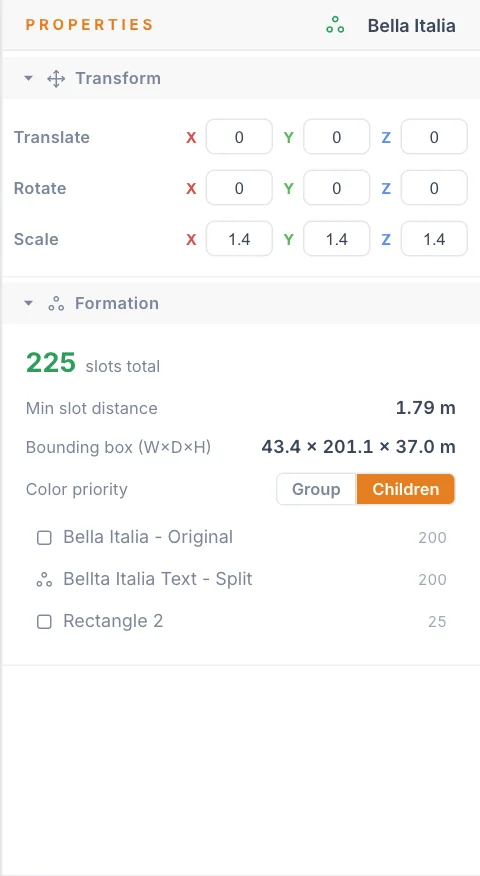
| Item | What it shows | Unit |
|---|---|---|
| slots total | Every slot in the group, including nested groups. The number shows a warning colour while the group is empty. | slots |
| Min slot distance | The closest two slots in the group, at the current playhead time. It updates as you scrub. | m |
| Bounding box (W×D×H) | The group's overall size at the current playhead time. | m |
| Color priority | Which colours win when the group and its members both have colour clips. | Group (default) or Children |
| Member list | Each direct member with its slot count. Click a row to select that member. | slots |
An empty group shows a reminder to drop elements into it. Min slot distance, Bounding box (W×D×H) and Color priority appear once it has members.
Color priority has two settings:
- Group: the group's colour clips paint over its children.
- Children: the children's colours show through the group's fill, so a child's solid colour is not hidden by a group-level colour.
Compare with your limits
Keep Min slot distance at or above the Min separation (m) on your Launch Pad. If the slots are closer than that, two drones cannot hold those positions at the same time: the bake keeps them apart at the limit, so they sit off their positions. Scrub through the animation, because a scale or a motion effect changes the number.
A group also has the standard Transform section. See Properties panel.
The Add menu
Everything you add to a show comes from one menu. Open it in any of these ways:
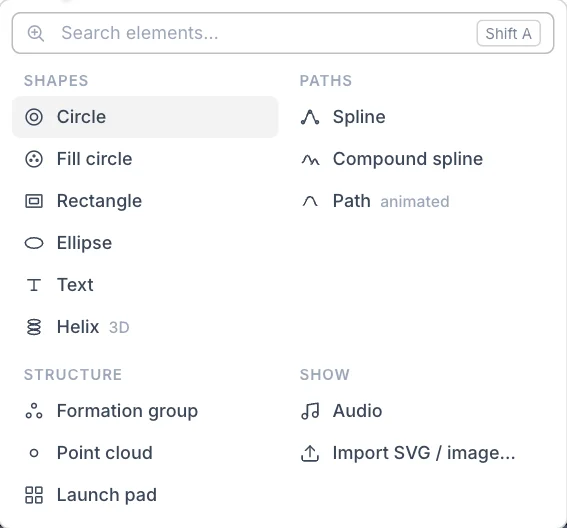
The search box has focus when the menu opens. Type a few letters and press Enter to add the top result: sp finds Spline. Search also understands other words, so disc finds Fill circle and music finds Audio. Use the arrow keys to move through the results. A row at the top lists what you added recently in this project.
| Group | Item | What it adds | Page |
|---|---|---|---|
| Shapes | Circle | Rings of drones. | Shapes |
| Shapes | Fill circle | A filled disc. | Shapes |
| Shapes | Rectangle | A filled or outlined rectangle. | Shapes |
| Shapes | Ellipse | A filled or outlined oval. | Shapes |
| Shapes | Text | Words in a drone font. | Text and fonts |
| Shapes | Helix | A 3D coil. | Shapes |
| Shapes | Mesh… | A 3D model you upload, covered in evenly spaced slots. | Mesh |
| Paths | Spline | A curve you can edit. | Splines |
| Paths | Compound spline | Several curves treated as one. | Splines |
| Paths | Path | Pre-animated flight data. | Animated paths |
| Structure | Formation group | A group, as described above. | This page |
| Structure | Point cloud | Points you place by hand. | Point clouds |
| Structure | Launch pad | A drone grid on the ground. | Launch Pad |
| Show | Audio | The soundtrack. One per show. | Audio |
| Show | Import SVG / image… | Artwork or a reference picture. | Images and SVG |
New elements go into the Show, not into the group you have selected. Drag them into a group afterwards. Launch pad and Audio stay outside the Show.
New shapes and splines start with one slot per drone in your fleet, or 50 if the show has no Launch Pad yet. Text starts with 120.
Tips
- Make one group per moment of the show, and give each a clear name, such as
LogoorFlag. Right-click a group and choose Rename. - A group is the unit of animation. If two parts should move separately, nest them as two groups inside a parent.
- Check slots total against your fleet size before you bake.
Next
Fill your group with Shapes or Text and fonts.