

Appearance
Hierarchy panel
The Hierarchy panel lists every element of your show as a tree. After this page you can select, nest, reorder, hide, copy and delete elements.
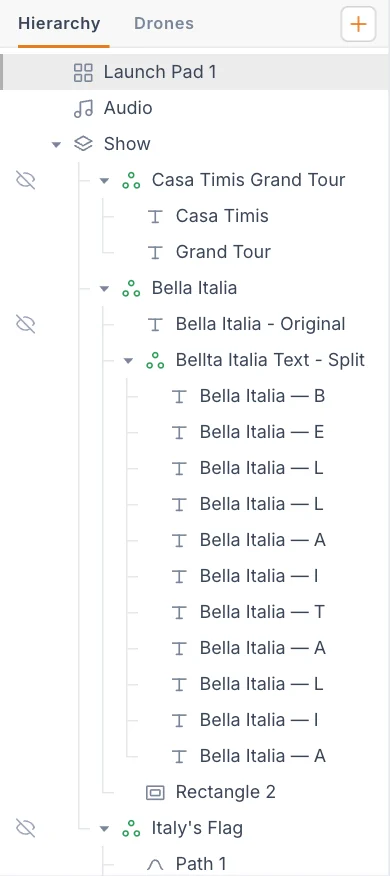
Read the tree
The Show row holds the design. Launch Pads and Audio sit beside it at the top level. The Environment is not in the tree; you open it from the top bar.
Each row shows, from left to right:
- An eye button for visibility. It appears when you hover over the row, and stays visible on hidden elements.
- Guide lines that show what sits inside what.
- A small arrow on rows that have children. Click it to collapse or expand them. The tree remembers this.
- An icon for the element type.
- The element name.
A Formation group's icon also tells you its status. Orange means it has no slots yet, so a Track clip pointing at it does nothing. Green means it holds at least one slot. See Formations and groups.
To add an element, press the + at the right end of the tab strip. It opens the same menu as Add.
Select elements
| Action | Result |
|---|---|
| Click a row | Selects that element only. |
| Cmd (Mac) or Ctrl (Windows) + click | Adds the row to the selection, or removes it. |
| Shift + click | Selects every row between the last click and this one. |
| Cmd or Ctrl + A with the pointer over the list | Selects every row you can see. |
| Click empty space in the panel | Clears the selection. |
Selected rows are highlighted. With several elements selected, the Timeline shows the channels of all of them, and the Properties panel shows a count instead of settings.
Rename
- Right-click the row.
- Choose Rename.
- Type the new name.
- Press Enter, or press Esc to cancel.
You can also click the name at the top of the Properties panel.
Drag to reorder and nest
Drag a row to a new place in the tree. Where you drop decides what happens:
| Drop on | Indicator | Result |
|---|---|---|
| The top or bottom edge of a row | A line between rows | Places the element before or after that row, at the same level. |
| The middle of a Show, Formation group or Compound spline row | The whole row highlights | Puts the element inside it, as the last child. |
Some limits apply:
- The Show, Launch Pads and Audio can be reordered at the top level, but they cannot go inside anything.
- You cannot drop an element into itself or into one of its own children.
You can also drag a Formation group row onto a Track clip in the Timeline. The clip then flies the drones to that group. See Drone events.
Hide and show
Click the eye on a row to hide the element in the viewport. Click it again to bring it back. Hide and Show in the right-click menu do the same.
Hiding has a real effect inside a Formation group: a hidden child gives none of its slots to the group, so the group's slot count drops.
Context menu
Right-click a row to open its menu. The items depend on the element.
| Item | Appears on | What it does |
|---|---|---|
| Rename | Every element | Edits the name in place. |
| Duplicate | Everything except the Show | Makes a copy next to the original. |
| Copy | Everything except the Show | Copies the element for pasting. |
| Split into characters | Text with at least 2 visible characters | Makes one Text element per character and hides the original. Your drone count is shared among the characters. |
| Convert to Point Cloud | Shapes, splines, text and other elements with slots | Turns the current slots into points you can edit by hand. The original is hidden, not deleted. See Point clouds. |
| Export font debug (JSON) | Text | Saves a diagnostic file about the text layout. You do not need it for normal work. |
| Export SVG | SVG elements | Saves the current SVG, with your edits, as a file. |
| Export Formation (.fsf) | Formation groups | Saves the group as a file you can load into another show. See Share formations. |
| Import Formation Group… | The Show | Loads a .fsf file under the Show. |
| Paste | The Show, when something is copied | Pastes what you copied. |
| Hide or Show | Elements that can be hidden | Same as the eye. |
| Delete | Everything except the Show | Removes the element. |
Right-clicking empty space in the panel offers Paste when something is copied.
Right-clicking a row that is not selected selects it first. Right-clicking inside a multi-selection keeps the selection, and Duplicate, Copy and Delete act on every selected element. The menu shows how many, for example Delete 3 elements.
Duplicate
Duplicate copies the element and everything inside it, adds (copy) to the name, places it right after the original, and selects the copy.
Copy and paste
- Select one or more elements and press Cmd C / Ctrl C, or right-click and choose Copy. Anything inside them is copied too.
- Press Cmd V / Ctrl V, or right-click the Show row or empty space in the panel and choose Paste.
A pasted element lands under the Show, and a pasted Launch Pad lands at the top level. It keeps its inside structure, and what you pasted becomes the selection. You can still paste after deleting the original.
To move a design to another show, use Share formations.
Delete
Select the row and press Delete or Backspace, or right-click it and choose Delete. The element goes at once, with no confirmation, and everything inside it goes too. The Show cannot be deleted.
Changed your mind? Press Cmd Z / Ctrl Z to bring it back. See Undo and Redo.
Keyboard
Delete, Cmd C / Ctrl C and Cmd V / Ctrl V act on the selected elements. See Keyboard shortcuts.
During bake playback
The left panel stays on the Drones tab while a bake is loaded, so the Hierarchy is out of reach until you press Exit.
Next
See your fleet in the Drones panel.