

Appearance
Sign in and workspaces
This page shows you how to create an account, sign in, and choose the workspace your shows belong to. It takes a couple of minutes, and you only do most of it once.
Create an account
If you do not have an account yet:
- Open Celestium in your browser.
- On the Sign in page, click Create one next to "No account?".
- Fill in First name, Last name and Email.
- Enter a Password of at least 8 characters.
- Type it again in Confirm password. If the two do not match, the page tells you and the button stays disabled.
- Click Create account.
You are signed in straight away and land on the Shows dashboard.
If you see "An account with that email already exists", click Sign in at the bottom of the page and use that account.
Sign in
- Enter your Email and Password.
- Click Sign in.
The app keeps you signed in on this browser, so you can reload the page or come back later without signing in again. If you followed a link to a page that needs an account, you return to that page after you sign in.
If you see "Invalid email or password", check both fields and try again.
No password reset yet
The sign-in page has no "forgot password" link at the moment. Keep your password in a password manager.
Set your password
Some accounts are created for you rather than by you. The first time you sign in with one of these, the app sends you to the Set your password page instead of letting you in:
- Check that your Email is filled in.
- Enter a New password of at least 8 characters.
- Type it again in Confirm password.
- Click Set password & sign in.
Your account is now active and you are signed in. From now on you use the normal Sign in page.
Workspaces
A workspace is the place your shows live. Each one has its own list of shows, so you see only the shows of the workspace you are in.
| Workspace | Who it is for |
|---|---|
| Personal workspace | You alone. Every account has one, even with no organization. |
| An organization | A team. It appears in the list only if you are a member, with your role next to its name. |
The workspace switcher is at the top right of the dashboard, next to the theme button. A small orange dot marks it.
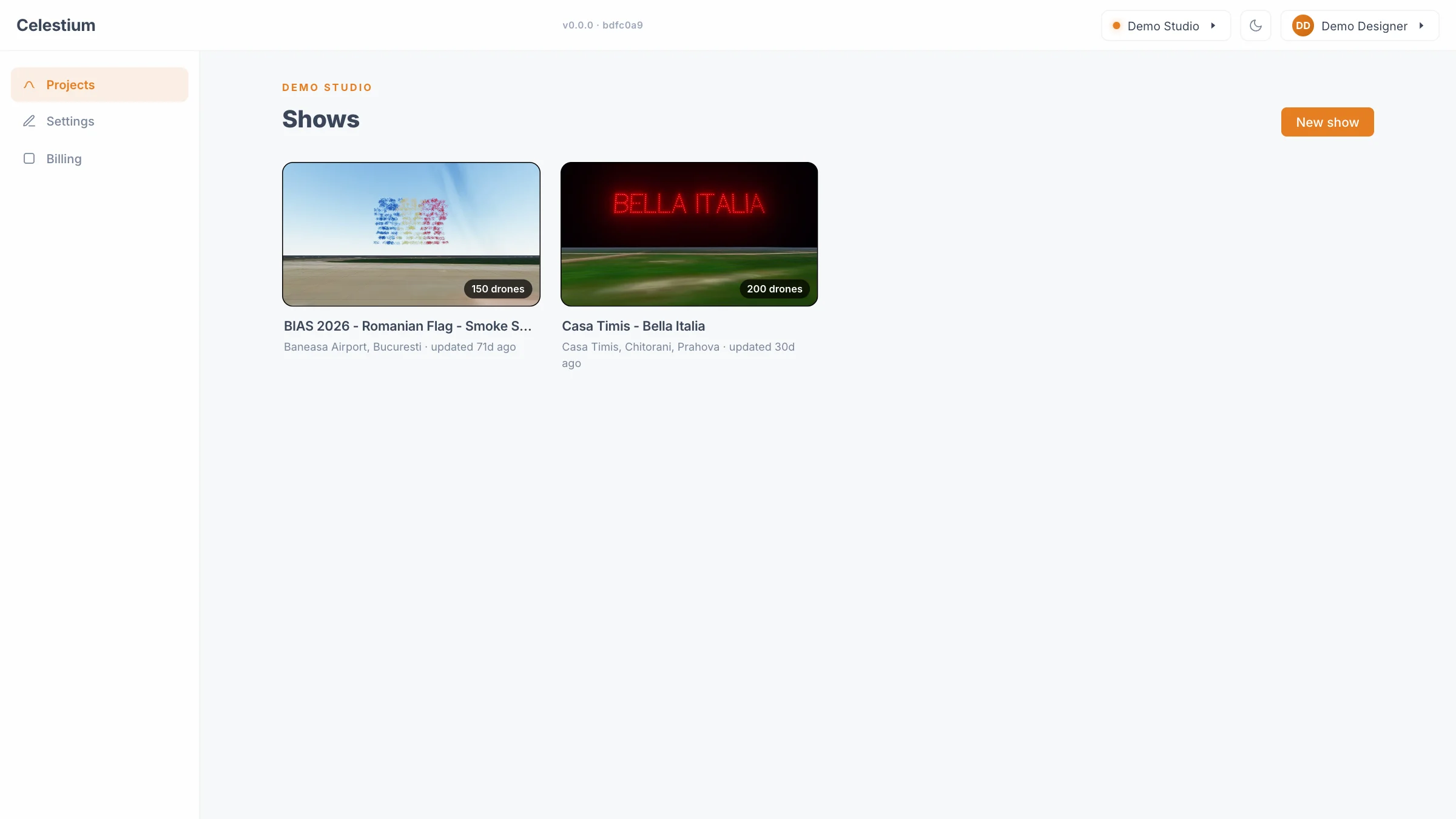
To change workspace:
- Click the workspace name.
- Choose Personal workspace or an organization.
The dashboard reloads with the shows of that workspace. If you were on another dashboard page, the app takes you back to the Shows page. The name above the Shows heading always tells you where you are.
Which workspace you start in
The app remembers your last choice for your account on this browser. On a first sign-in it picks your first organization. If you have none, you start in your Personal workspace.
A show looks missing?
Check the workspace switcher first. A show lives in the workspace where you created it, so it is not listed in any other workspace.
There is no way to create an organization or invite members from the app yet. The Settings page marks those options as coming soon.
Sign out and theme
Your name is at the far right of the dashboard's top bar. Click it to see your email, open Settings or choose Sign out.
The sun or moon button beside it switches between the dark and light themes.
Next
Continue with The Shows dashboard.