

Appearance
Splines
On this page you will draw a curve of your own, edit it point by point, and control how drones spread along it or fill the area inside it.
A spline is a smooth curve defined by a few control points. A Compound spline is several curves treated as one shape, which is what you get when you import a logo.
To add one, open the Add menu and choose Spline or Compound spline.
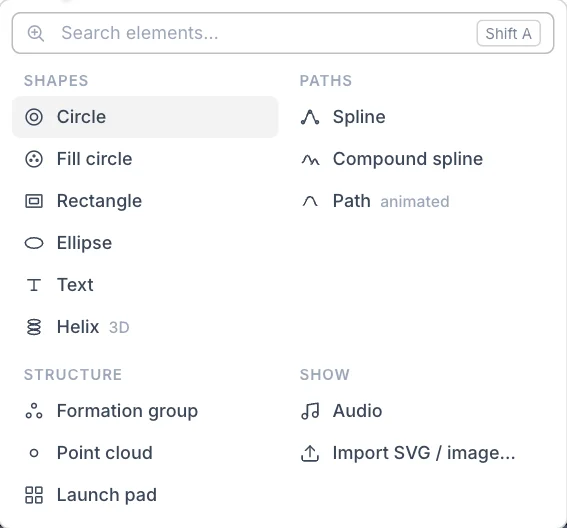
Spline
A new Spline is a gentle S-curve with three anchors, standing upright at the show origin. It has your fleet size as its Drone count, or 50 if the show has no Launch Pad.
Edit the curve
A curve has two kinds of point:
- An anchor sits on the curve.
- A handle sits off the curve and pulls it into a bend. Handles come in pairs around an anchor. They are also called tangents.
- Select the Spline. An Edit spline button appears at the top of the viewport.
- Click Edit spline. The toolbar replaces the button, and the drones hide so you can see the curve.
- Choose an edit mode on the toolbar.
- Click a point, then drag its gizmo to move it.
- Click the check mark, or press Esc, to finish.
| Toolbar button | What it does |
|---|---|
| Anchor points | Shows and moves anchors only. |
| Handles (tangents) | Shows anchors and handles, joined by lines. |
| Segments | Shows one point at the middle of each stretch of curve. Dragging it moves that whole stretch. |
| Whole spline | Shows one point at the centre. Dragging it moves the whole curve. |
| Closed loop | Joins the last anchor to the first, or opens the loop again. The new closing stretch starts straight. |
| Done editing (Esc) | Leaves edit mode. |
In Anchor points and Handles (tangents) mode:
- Add an anchor: click on the curve. The click must land within 3 m of it.
- Remove an anchor: select it and press Delete or Backspace. A spline always keeps at least two anchors.
- Deselect: click empty space. You stay in edit mode.
Edit mode also ends if you delete the spline or select something else.
Spline settings
| Setting | What it does | Default |
|---|---|---|
| Closed loop | Joins the ends of the curve. Same as the toolbar button. | Off |
| Segments / curve | How smooth the curve is drawn, from 4 to 64. | 16 |
| Distribution | Spline places slots along the line. Hull (fill area) fills the enclosed area and appears only for a closed loop. | Spline |
| Color | Base colour. Black means the LED is off until a colour clip lights it. | Black |
Slots along the line
These settings appear when Distribution is Spline. A slot is one point of a shape that a drone will fly to.
| Setting | What it does | Default |
|---|---|---|
| Slot mode | By count, By density (pts/m) or By spacing (m). See Slot mode. | By count |
| Drone count | Number of slots. Shown for By count. Minimum 1. | Fleet size |
| Density (pts/m) | Drones per metre of curve. Shown for By density (pts/m). | 1 |
| Spacing (m) | Metres between drones along the curve. Shown for By spacing (m). | 2 |
| Pivot weighting | Puts a drone exactly on each sharp corner before spreading the rest, so corners stay crisp. Off while Partial spline is on. | Off |
| Pivot angle (°) | How sharply the curve must turn to count as a corner, from 0 to 180. Shown with Pivot weighting. | 45 |
| Min corner gap (m) | The smallest distance between two corner drones. 0 turns this off. Shown with Pivot weighting. | 0 |
| Partial spline | Uses only part of the curve. Off while Pivot weighting is on. | Off |
| Start (%) | Where the used part begins. Shown with Partial spline. | 0 |
| End (%) | Where the used part ends. Shown with Partial spline. | 100 |
Filling the area
Turn on Closed loop, then set Distribution to Hull (fill area). Drones now fill the shape instead of tracing it.
| Setting | What it does | Default |
|---|---|---|
| Drone count | Number of slots. Minimum 1. | Fleet size |
| Projection axis | The flat plane the fill sits on: Y (fill X–Z plane), Z (fill X–Y plane) or X (fill Y–Z plane). An upright curve uses the default. | Y (fill X–Z plane) |
| Fill mode | The pattern: Bounded grid (a square grid cut to the shape), Poisson (slightly random spacing) or Scaled fit (a grid matched to the shape's proportions). | Bounded grid |
| Density (m, 0=auto) | Distance between points. 0 works it out from the area and Drone count. With a set distance, the slot count is whatever fits, up to Drone count. | 0 |
| Random seed | Gives a different Poisson pattern. Shown for Poisson only. | 1 |
Compound spline
A Compound spline holds several curves. Each curve is a normal Spline listed under it in the Hierarchy, so you can select one and edit it, recolour it or change its distribution.
| Setting | What it does | Default |
|---|---|---|
| Curve count | A read-out of how many curves it holds. | 0 for a new one |
| Total drones | Slots shared across all the curves, by length. A longer curve gets more drones. Minimum 1. | Fleet size, or 50 after an import |
Changing Total drones shares the drones out again, which replaces any Drone count you set on a single curve. Set the total first.
The Add menu creates an empty Compound spline. The usual way to fill one is to import artwork. See Images and SVG.
Put it in a group
A drone clip accepts only a Formation group, so drag your Spline or Compound spline into one before you fly it.
Tips
- Use as few anchors as you can. The curve stays smoother and is easier to reshape.
- Turn on Pivot weighting for shapes with sharp corners, such as a star.
- Use Partial spline to reserve part of a line, then give the rest to another element.
- For a line of evenly spaced drones, use By spacing (m) with a value above your Min separation (m).
Next
Bring in existing artwork with Images and SVG.