

Appearance
Home and the Shows dashboard
Home is the first page after you sign in. Projects is the full list of shows, where you start, open, rename and delete them. This page explains both, along with the Settings and Billing pages.
The left sidebar lists Home, Projects and Billing, plus Members in an organization and the Assistant when it is on. Settings and the theme are in the menu under your name. The app uses the words show and project for the same thing.
Home
Home opens with the assistant and today's position, then goes down through what needs you and your shows. A section with nothing to say does not appear.
| Section | What it shows |
|---|---|
| Top of the page | A one-sentence summary of today, and the assistant's box. Choose a show under About to ask about it. Suggestions fill the box, and nothing is sent until you press send. |
| Needs you | Failed bakes, safety limits, out-of-date files, requests from the assistant and plan problems. Each card has a way to deal with it. |
| Continue | The show you opened last, and how far along it is: Bake, Safety, Edits and FSP. |
| Up next | Shows with a date, soonest first, with the days left and the sunset at the show's position. |
| Your shows | Your recent shows. Search, or filter by pinned, baking or not baked. Click a show to open the editor. |
| Assistant | What the assistant is working on, and your recent conversations. |
| Team | In an organization, who has baked, edited or exported lately. |
Sunset uses this computer's time when the show is near your time zone, and UTC when it is far away.
To hide a section, click Customize this page at the bottom of Home. This is saved in this browser.
Give a show a date
Add a date under New show or in the show's Settings tab. Dated shows appear in Up next, and Home warns you when one is close and not ready.
The Projects page
Use the search box to find a show by name or location, the filters to narrow the list, and Sort by to change the order. Hover over a card and click the star to pin a show.
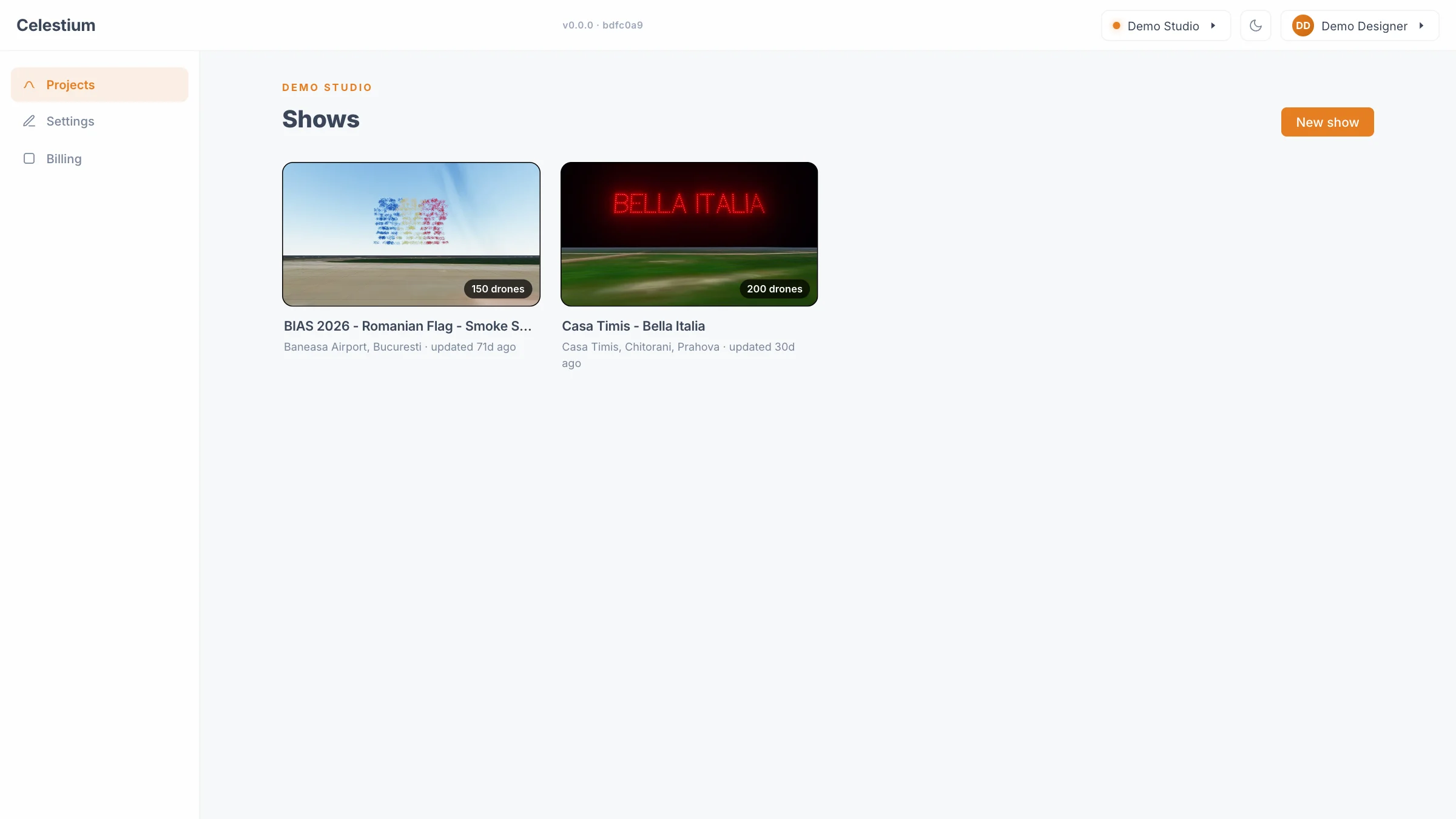
Show cards
Each show in the current workspace has a card.
| Part of the card | What it shows |
|---|---|
| Preview | A preview of the baked show. The app makes a new one after each bake. Before the first bake it reads No preview yet. |
| Drone badge | The Drones value of the show |
| Name | The show's title |
| Label on the preview | The show's state, such as Baking, Bake failed, Not baked or Ready |
| Line below the name | The location, if you entered one, how long ago the show was edited, and its date |
Click a card to open the show's page. Hover over a card to reveal its buttons: the star pins the show, the cog opens the show's Settings tab, and the bin deletes it.
Create a new show
- Click New show at the top right.
- Enter a Title. This is the only field you must fill in.
- Fill in the other fields if you want to, using the table below.
- Click Create show.
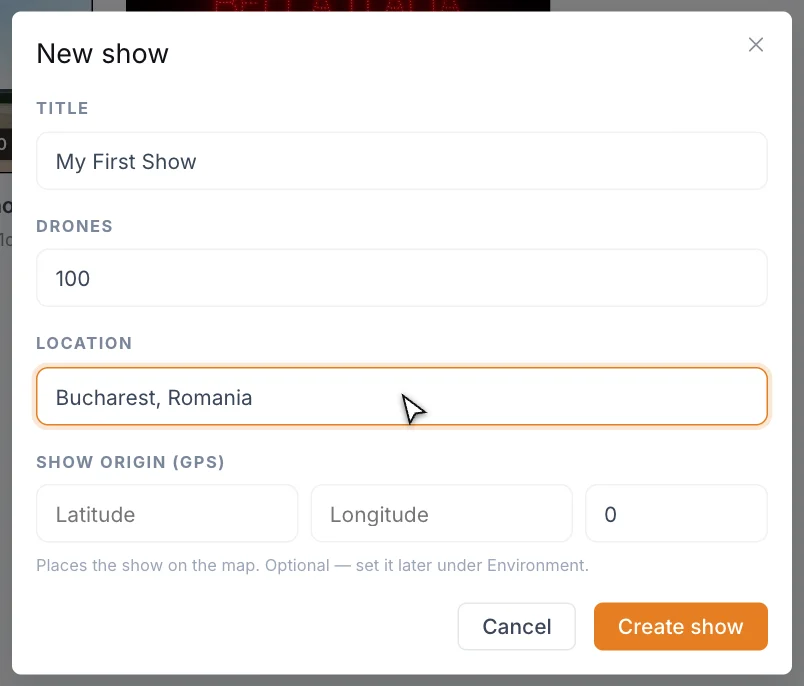
| Field | What it does | Good starting value |
|---|---|---|
| Title | The show's name. | Something you will recognize later |
| Drones | The size of your fleet. The new show's starter scene is built for this number. Accepts 1 to 100000. | 100 |
| Location | A place name, shown on the card, in Project information and in Origin under Environment. | The city or venue |
| Show date | The day the show flies. Home uses it to rank what needs you. | Leave empty until you know it |
| Show origin (GPS) | Latitude, Longitude and Alt (m). These place the show on the map. Enter both Latitude and Longitude for them to count. Optional. | Leave empty for now |
These values set up the first opening
The first time you open the show in the editor, the Launch Pad and the starter formations are sized for your Drones number, and Origin in Environment holds your GPS values. After that, change them in the editor: the fleet size on the Launch Pad, the place in Environment. The dashboard keeps showing the values you typed here.
The show opens on its own page. The first time you open it in the editor, it is already filled with a ready-to-bake starter. See Create your first show.
The show page
The show's page has a ← Shows link back to the list, the title and drone count, and four tabs.
| Tab | What you find there |
|---|---|
| Project information | Title, Drones, Location and Origin (GPS). Read-only. |
| Editor | The preview and the Open editor button. This tab opens first. |
| Storyboard | Not available yet. It is marked as coming soon. |
| Settings | Rename or delete the show. |
Click Open editor to start working. To come back from the editor, click the back arrow at the far left of its top bar.
Rename a show
- Open the show's Settings tab.
- Type the new name in Project name.
- Click Save changes.
You can also rename a show from inside the editor. Click the show's name at the left of the top bar and choose Rename…. See Top bar.
Delete a show
Deleting a show removes its scenes, baked shows and uploaded assets. You cannot undo this.
- Hover over the card and click the bin, or open the Settings tab and click Delete this project under Danger zone.
- Read the warning.
- Type the show's exact name in the box.
- Click Delete this project. The button stays disabled until the name matches.
Deleting affects everyone
In an organization workspace, a deleted show is gone for every member.
Recover local work
If this browser holds work from before shows were stored online, a banner reads Unsynced local work found. Click Import into a show. The app creates a new show called Recovered Show and copies the work into it.
Settings and billing
Settings shows your Profile: Name, Email and Role. These are read-only. Organization, member and account settings are marked as coming soon.
Billing shows the current workspace and its plan, which reads Free plan. Plans, usage and invoices will appear here later. Billing is per organization.
Tips
- Give shows a clear title from the start, because the title is the name you type to delete them.
- Bake once early. The card then shows a real preview, so the show is easy to find in a long list.
- The version label beside the logo tells you which build of the app you are using. One click selects it, which makes it easy to copy into a bug report.
Next
Build something in Create your first show.