

Appearance
Flight limits and separation
On this page you learn what each flight limit means, what its default value is, where to change it, and how long a move takes at those limits.
Limits tell the bake engine what your drones may do. They are also what the Safety checks compare against.
Defaults
Each Launch Pad has its own limits. Select the Launch Pad and open the Flight section of the Properties panel on the right.
| Setting | Default | What it limits | Lowest value |
|---|---|---|---|
| Horizontal speed (m/s) | 5 | Speed moving sideways | 0.01 |
| Up speed (m/s) | 3 | Climb speed | 0.01 |
| Down speed (m/s) | 2.5 | Descent speed | 0.01 |
| Max 3D speed (m/s) | 6 | Speed in any direction, counting all axes together | 0.01 |
| Acceleration (m/s²) | 3 | How hard a drone speeds up or slows down | 0.01 |
| Min separation (m) | 2 | The closest distance allowed between the centres of two drones in flight | 0.1 |
Limits protect real aircraft
Change a limit only when you know what your drones and your site allow. A higher number does not make a show safer, and it makes a warning disappear without removing the risk.
How the limits work together
A drone obeys every limit at once, so the tightest one wins for the direction it flies.
- Flying level, it is limited by Horizontal speed: 5 m/s.
- Climbing straight up, it is limited by Up speed: 3 m/s.
- Descending straight down, it is limited by Down speed: 2.5 m/s.
- Climbing at 45°, the climb part must stay at 3 m/s, so its overall speed is about 4.2 m/s.
Max 3D speed caps the overall speed, whatever the direction.
How long a move takes
Use these times when you set the length of a Track clip. They are the least time for one drone flying a straight line with the default limits, from a stop to a stop.
| Move | 50 m | 100 m |
|---|---|---|
| Horizontal | 11.7 s | 21.7 s |
| Up | 17.7 s | 34.3 s |
| Down | 20.8 s | 40.8 s |
For a longer move, you can work it out yourself:
time = distance ÷ speed + speed ÷ acceleration
For example, 100 m level: 100 ÷ 5 + 5 ÷ 3 = 21.7 s.
Real routes take longer, because drones steer around each other. Leave some extra time, then read the baked numbers. See Safety checks.
Min separation and the launch grid
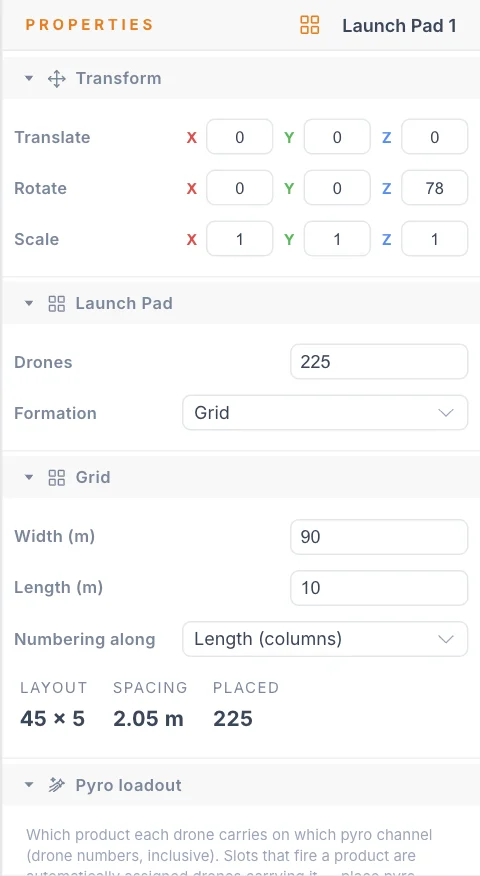
A new Launch Pad starts with 100 drones in a 40 × 40 m grid, which gives a Spacing of 4.44 m. The Grid section shows the Layout, Spacing and Placed values for your own settings.
The baked Min Distance counts drones on the launch grid too. Keep Spacing at or above Min separation, or the numbers will be under the limit from the first frame.
Keep your formations at or above Min separation as well. A shape spaced exactly at the limit holds its positions. Below the limit, the bake keeps drones apart at the limit, so they sit off their positions and the Safety check fails. A formation's Min slot distance appears in its Properties panel. Below 2 m the Safety check turns amber, and below 1.8 m, 10% under the limit, it turns red.
Override limits for one clip
Takeoff, Track and Return clips can use different limits. They apply from the start of the clip until the Launch Pad's next drone clip, so they also cover the hold after the clip. Use this to slow one difficult transition, or to give a clip more margin, without changing the rest of the show.
- Click the clip on the timeline.
- Open Override Constraints in the Properties panel.
- Type the value you want in H Speed, Up Speed, Down Speed, Max 3D Speed, Acceleration or Min Separation.
A blank field uses the Launch Pad value, shown in grey. Click Reset to pad to clear all overrides on the clip.
The Safety checks, the Checks tab lines and the bake's result judge each moment by the limits in force at that moment. A raised limit passes during its clip, and a lowered one is held to.
If a clip raises Min Separation, the drones take 3 s to open up to the new distance, and the earlier limit still counts for those 3 s.
Switch limits off for a moment
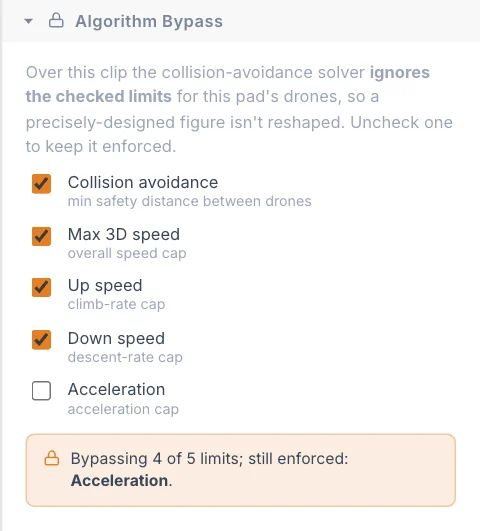
An Algorithm Bypass clip plays your animation as designed, by switching off the limits you tick: Collision avoidance, Max 3D speed, Up speed, Down speed and Acceleration. All five are ticked by default.
Full bypass means no protection
With all five ticked, drones play your exact motion with no avoidance and no speed or acceleration limits. Your animation must keep them apart by itself.
More than one Launch Pad
Each pad's limits apply to the drones of that pad, with some shared rules.
| Where | What it uses |
|---|---|
| Bake, keeping drones apart | Each drone's own Min separation. Two drones keep the larger of their two values |
| Safety checks and Checks tab lines | The strictest value of each limit across all pads |
| Final smoothing, in the bake and during FSP export | The strictest value of each limit across all pads |
Next
Use these numbers in Safety checks, and look up terms in the Glossary.