

Appearance
Keyboard shortcuts
This page lists every keyboard shortcut in the editor, with Mac and Windows keys. To see the short version in the app, open Help in the top bar and choose Keyboard shortcuts.
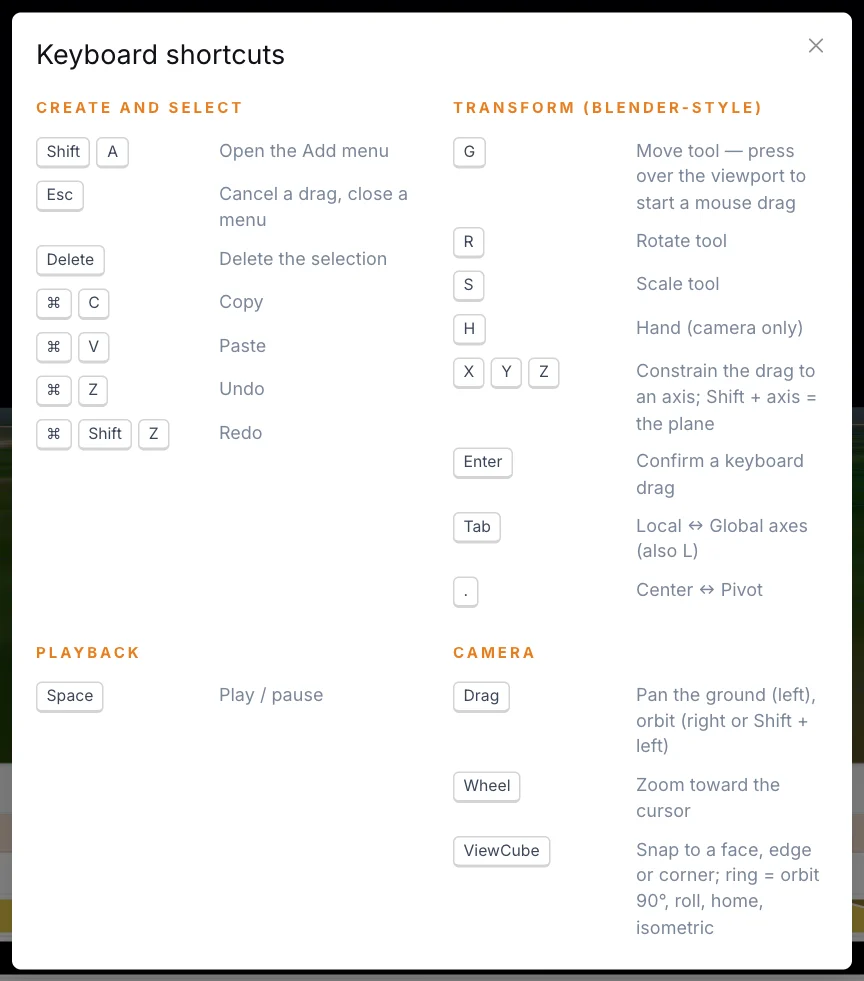
Shortcuts are ignored while you type in a field. If a key does nothing, press Enter to leave the field, then try again. On a Mac, Alt is the Option key.
Create and save
| Action | Mac | Windows | Notes |
|---|---|---|---|
| Open the Add menu | Shift A | Shift A | Not during bake playback. |
| Save now | Cmd S | Ctrl S | Saves at once if there are unsaved changes. Shows also save by themselves. |
Edit
These keys work anywhere in the editor, and not during bake playback. A text field keeps its own undo, copy and paste while you type in it.
| Action | Mac | Windows | Notes |
|---|---|---|---|
| Undo | Cmd Z | Ctrl Z | Takes back your last change. See Undo and Redo. |
| Redo | Cmd Shift Z | Ctrl Shift Z or Ctrl Y | Puts it back. |
| Delete | Delete or Backspace | Delete or Backspace | Removes the selected clips and keyframes. With none selected, removes the selected elements. |
| Copy | Cmd C | Ctrl C | Copies the selected clip. With none selected, copies the selected elements. |
| Paste | Cmd V | Ctrl V | Pastes what you copied last. A clip lands at the playhead, on the selected clip's channel or the selected element's first channel of that type. |
Transform
These keys work with the pointer over the viewport, and not during bake playback.
| Action | Mac | Windows | Notes |
|---|---|---|---|
| Move tool | G | G | With a selection, starts a drag that follows the mouse. |
| Rotate tool | R | R | Same. |
| Scale tool | S | S | Same. |
| Hand tool | H | H | Camera only. |
| Lock the drag to an axis | X, Y, Z | X, Y, Z | During a drag. Press again to release. |
| Lock the drag to a plane | Shift X, Shift Y, Shift Z | Shift X, Shift Y, Shift Z | The flat plane across that axis. |
| Confirm the drag | Enter or click | Enter or click | |
| Cancel the drag | Esc or right-click | Esc or right-click | Esc also cancels a gizmo drag. |
| Flip Local and Global | Tab or L | Tab or L | |
| Flip Center and Pivot | . | . | The full stop key. |
Playback
These keys work anywhere in the editor.
| Action | Mac | Windows |
|---|---|---|
| Play or pause | Space | Space |
| Step one frame | Left / Right arrow | Left / Right arrow |
| Step to the previous or next whole second | Shift + Left / Right arrow | Shift + Left / Right arrow |
| Go to the start | Home | Home |
| Go to the end of the last clip or keyframe | End | End |
| Next keyframe | K | K |
| Previous keyframe | Shift K | Shift K |
The K keys use the Transform channels visible in the Timeline.
Camera
| Action | Mouse | Trackpad |
|---|---|---|
| Pan | Left-drag | Press and drag |
| Orbit | Right-drag, or Shift + left-drag | Shift + press and drag |
| Zoom toward the cursor | Scroll wheel | Two-finger scroll, or pinch |
| Exact views | Click the ViewCube or its ring | Same |
Select
| Action | Mac | Windows | Where |
|---|---|---|---|
| Add to or remove from the selection | Cmd + click | Ctrl + click | Viewport, Hierarchy |
| Select a range of rows | Shift + click | Shift + click | Hierarchy |
| Select all rows | Cmd A | Ctrl A | With the pointer over the Hierarchy list |
| Add or remove a clip or keyframe | Shift + click | Shift + click | Timeline |
| Box select | Drag on empty space | Drag on empty space | Timeline |
| Add with a box | Shift + drag | Shift + drag | Timeline |
| Add slots with a box | Shift + drag | Shift + drag | Viewport, while picking slots |
| Remove slots with a box | Shift + Alt + drag | Shift + Alt + drag | Viewport, while picking slots |
Timeline and fields
| Action | Mac | Windows |
|---|---|---|
| Zoom the Timeline | Cmd + scroll, or pinch | Ctrl + scroll, or pinch |
| Fine adjustment when dragging a number label | Shift + drag | Shift + drag |
| Finish a field, name or time | Enter | Enter |
| Cancel a name or time | Esc | Esc |
Menus
| Action | Mac | Windows |
|---|---|---|
| Move through the Add menu | Up / Down arrow | Up / Down arrow |
| Add the highlighted item | Enter | Enter |
| Close the Add menu or a right-click menu | Esc | Esc |
Edit modes
These keys work while you edit a spline, a point cloud or an SVG.
| Action | Mode | Mac | Windows |
|---|---|---|---|
| Remove the selected anchor, point or path | All | Delete or Backspace | Delete or Backspace |
| Leave edit mode | All | Esc | Esc |
| Save the guideline you drew | Point cloud, while linking points | Enter | Enter |
| Apply the split | SVG, while splitting | Enter | Enter |
In a point cloud, Esc first drops the line you are drawing, then leaves linking, then leaves edit mode. In an SVG, it first leaves splitting.
Next
Start building your scene with Show and Environment.