

Appearance
Interface tour
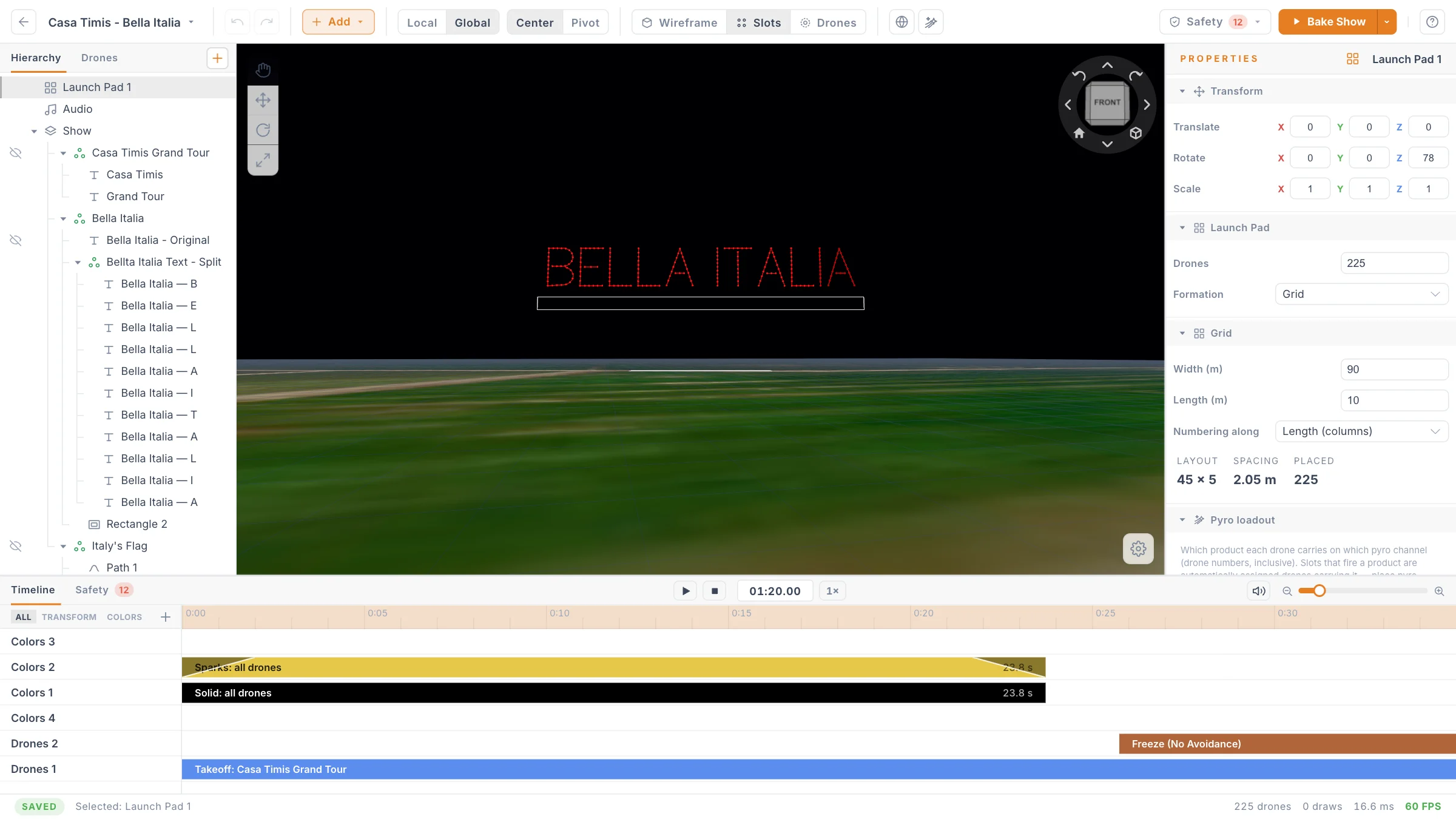
This page shows you what each area of the editor is for, so you know where to look when you build a show. Every area has its own page with the details.
You work with four kinds of things:
- An element is one object in your show, such as a text, a circle or a Launch Pad.
- A slot is one point of a shape that a drone will fly to.
- A clip is a block of time on the timeline that does something, such as flying drones to a shape or painting it red.
- A bake is the finished calculation of every drone's flight. See the Glossary for more terms.
Top bar
The strip across the top holds the commands for the whole show: back to your shows, the project menu, Add, the transform modes, the view modes, Safety and Bake Show. See Top bar.
Left panel: Hierarchy and Drones
The left panel has two tabs. Hierarchy lists every element of the show as a tree, and the + at the end of the tab strip opens the same menu as Add. Drones lists every drone in your fleet, one row each. See Hierarchy panel and Drones panel.
Viewport
The large 3D view in the centre is where you see the show. The tool rail sits in its top-left corner, the ViewCube in the top-right corner, and the viewport settings cog in the bottom-right corner. The map credits stay in the bottom-left corner. See Viewport and navigation.
Properties panel
The right panel shows the settings of whatever you selected: an element, the Environment, or a timeline clip. See Properties panel.
Bottom panel: Timeline and Safety
The bottom panel runs the full width of the window. The Timeline tab shows the channels and clips of the selected element, with the play controls and zoom slider in the tab row. The Safety tab lists the live checks of your design, with a count on the tab when something needs attention. See Timeline and Safety checks.
Status bar
The thin bar at the very bottom reports the state of your work.

On the left, a small label tells you the save state and a text names your selection, such as Selected: Text 1, 3 selected or No selection.
| Save label | What it means |
|---|---|
| Saved | Everything is stored. |
| Unsaved | You have changes that are waiting to save. |
| Saving… | A save is running. |
| Save failed | The last save did not go through. |
| Conflict | Someone else saved this show while you had unsaved changes. Save to resolve it, or reload to get their changes. |
| Local | This is a local draft, not a saved project. |
| Loading… | The show is still opening. |
On the right you see how many drones are visible, then three speed readings: draws (drawing operations per frame), ms (time to draw one frame) and FPS (frames per second). The FPS number changes colour below 50 and again below 30, so you can tell when a scene is getting heavy.
Resize the panels
Drag the divider between two areas to resize them. Your sizes are remembered in this browser.
What changes in bake playback
When you bake a show or load a bake, the editor becomes a read-only player:
- The left panel stays on the Drones tab.
- The Properties panel is replaced by Statistics.
- The bottom panel gains a Checks tab.
- The tool rail disappears, and a banner at the top of the viewport reminds you that this is a bake.

Press Exit to go back to editing. See Baking and playback.
Next
Learn the commands across the top in Top bar.