

Appearance
Viewport and app settings
This page covers the settings that change how the editor looks to you. After reading it you can tune the viewport for your screen and choose a theme. None of these settings changes the show itself.
Viewport settings
The cog in the bottom-right corner of the viewport opens the viewport settings.
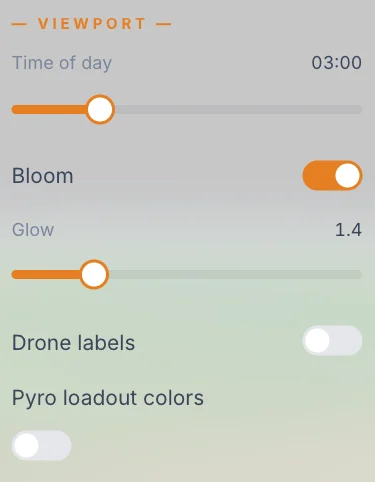
| Setting | What it does | Starts at |
|---|---|---|
| Time of day | Sets how bright the map is, from dark on the left to full brightness on the right. | 0.25 of the slider, a dim night look |
| Bloom | Adds a soft glow around lit drones. | On |
| Glow | Sets the strength of that glow, from 0 to 6. It appears only when Bloom is on. | 1.4 |
| Drone labels | Shows each drone's number above it. | Off |
| Pyro loadout colors | Colours every drone by the pyro product it carries, in place of the show colours. Drones with no product turn dim grey. | Off |
A few details:
- The clock beside Time of day only labels the slider. It reads 00:00 at the far left, the darkest setting, and 12:00 at the far right, the brightest.
- Time of day affects the map only. Drones stay as bright as they are.
- Time of day has no effect while Daylight is on in the Environment, because Daylight forces the map to full brightness.
- Labels need the Drones view, and are skipped when more than 500 drones are in view.
- Pyro loadout colors works in the live preview and in bake playback. Use it to check that the drones carrying a product end up where that product fires. See Launch Pad and Pyro and fireworks.
TIP
For a night show, keep Time of day low so that the drones stand out. For a daytime show, use the Daylight switch instead. See Daytime shows.
These settings are saved in your browser and follow you from show to show. They are not saved in the project, so a colleague sees their own.
Theme
The theme lives in the project menu.
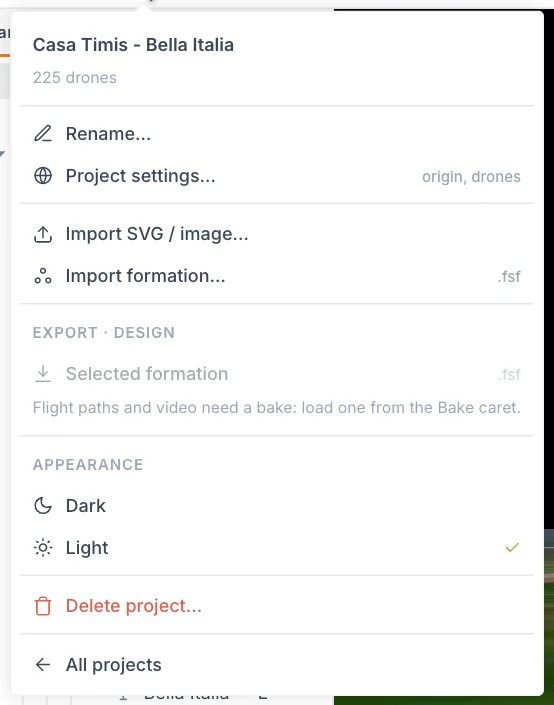
- Click the show's name at the left of the top bar.
- Under Appearance, choose Dark or Light.
The change applies at once, and a check mark shows the current choice. The first time you open the app, it follows your computer's light or dark setting. After you choose, your choice is saved in this browser.
What is saved where
| Saved with the show, for everyone | Saved in your browser, for you |
|---|---|
| Elements, clips and channels | Viewport settings and theme |
| Environment settings, such as Daylight, Show grid and the home view | Camera position, per show |
| Active tool, Local / Global, Center / Pivot and view mode | |
| Panel sizes, Timeline zoom and channel filter | |
| Collapsed sections and drone eyes |
If you switch to another computer or clear your browser data, the right-hand column goes back to its defaults. Your show is not affected.
Next
Work faster with Keyboard shortcuts.