

Appearance
Top bar
The top bar holds the commands for the whole show. This page walks through every control from left to right, so you can find any command and know when it is available.

Back to Projects
The arrow at the far left closes the editor and returns to your shows. Unsaved changes are saved on the way out.
Project menu
The show name next to the arrow is a menu. Long names are shortened, and hovering shows the full name. The top of the menu repeats the name and shows the drone count. During bake playback it also says which bake is loaded.
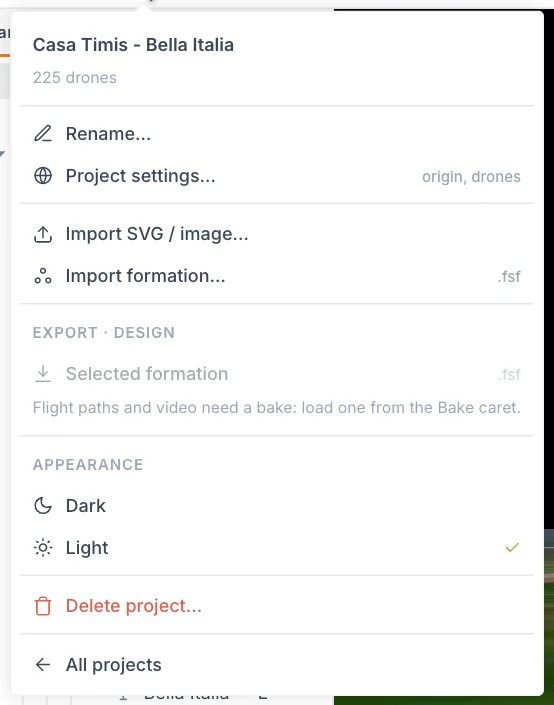
These items are always in the menu:
| Item | What it does |
|---|---|
| Rename… | Changes the show name. |
| Project settings… | Opens the show's project page, with details such as its origin and drone count. |
| Import SVG / image… | Opens the import dialog. See Images and SVG. |
| Import formation… | Loads a .fsf file and adds it under the Show. See Share formations. |
| Dark / Light | Under Appearance. Switches the app theme. See Viewport and app settings. |
| Delete project… | Deletes the show, its scene and its bakes for everyone. You must type the show name to confirm. |
| All projects | Returns to your shows. |
The export part of the menu depends on what you are doing.
| While you are | Group title | Items |
|---|---|---|
| Editing | Export · design | Selected formation (.fsf). Available only when a Formation group is selected. |
| In bake playback | Export · bake v… | Flight paths… (FSP, zipped), Render video… (.mp4), Pyro report (PDF) |
Flight paths, video and the pyro report need a bake, so load one from the caret on the Bake Show button first. See Export FSP flight files, Render a video and Pyro report.
During bake playback the two import items are unavailable. In a local draft, Rename…, Project settings… and Delete project… are unavailable because the draft is not a saved project.
WARNING
Delete project… cannot be undone.
Undo and Redo
The two curved arrows take back a change and put it back. An arrow is greyed out when there is nothing to undo or redo, and both are greyed out in Bake mode.
- Undo takes back your last change. The key is Cmd Z / Ctrl Z.
- Redo puts it back. The key is Cmd Shift Z / Ctrl Shift Z.
Undo covers the show itself: elements, clips, keyframes, settings and the Environment. It reaches back 100 steps. One drag or one slider move counts as one step. The history resets when you reload the page, and it does not cover the camera or the playhead.
Add
Add is where you create new elements. You can also open the same menu with Shift A, or with the + in the Hierarchy tab strip. It is not available during bake playback.
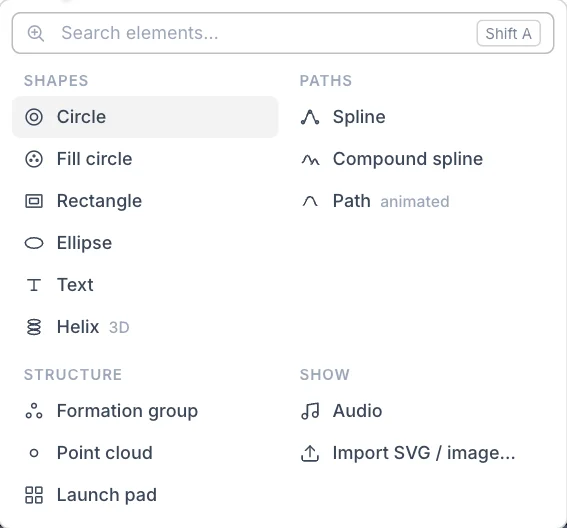
- Open Add. The search field is ready for typing.
- Type part of a name, such as
spfor Spline, or a related word, such asmusicfor Audio. - Press Enter to add the highlighted result, or click any item.
Use the Up and Down arrow keys to move the highlight, and Esc to close the menu. Items you added recently appear at the top under Recent in this project.
| Group | Items |
|---|---|
| Shapes | Circle, Fill circle, Rectangle, Ellipse, Text, Helix, Mesh… |
| Paths | Spline, Compound spline, Path |
| Structure | Formation group, Point cloud, Launch pad |
| Show | Audio, Import SVG / image… |
New elements are added under the Show. Launch Pads and Audio sit at the top level of the tree. New circles, rectangles, ellipses, helixes, meshes and splines start with one slot per drone in your fleet, or 50 slots if you have no fleet yet. A show can hold one Audio element, and you add more clips to it instead.
Local and Global
This pair decides which way the gizmo axes point. A gizmo is the set of handles you drag to move, rotate or scale an element.
| Option | Axes follow | Key |
|---|---|---|
| Local | The element's own rotation. | Tab or L flips between the two |
| Global | The show's face and heading. This is the default. | Tab or L flips between the two |
Center and Pivot
This pair decides the point that rotation and scaling turn around.
| Option | Turns around | Key |
|---|---|---|
| Center | The geometric centre of the selection. This is the default. | . flips between the two |
| Pivot | Each element's own pivot point. Drag the amber dot in the viewport to move it. | . flips between the two |
Wireframe, Slots and Drones
These three buttons decide what the viewport draws. They change the view only, not the show.

| View | What you see | Good for |
|---|---|---|
| Wireframe | Shape outlines only. | Judging shapes without clutter. |
| Slots | Outlines and slot markers. This is the default. | Designing and placing elements. |
| Drones | The fleet drones only, with no outlines, slots or Launch Pad surfaces. | Previewing how the show will look. |
Baking or loading a bake switches the view to Drones.
Environment and Pyro catalog
The next two icons cover show-wide things that are not elements.
Environment opens the Environment settings in the Properties panel. Click it again to close them. This is where the map controls live, so there is no separate map switch in the top bar. The Map section holds 3D map, Daylight, Show grid, Origin axes, Limit area and Radius (m). The Origin section sets where the show sits on Earth, and the Camera section saves your own home view. See Show and Environment and 3D map.
Pyro catalog opens the list of pyro products. See Pyro and fireworks.
Safety
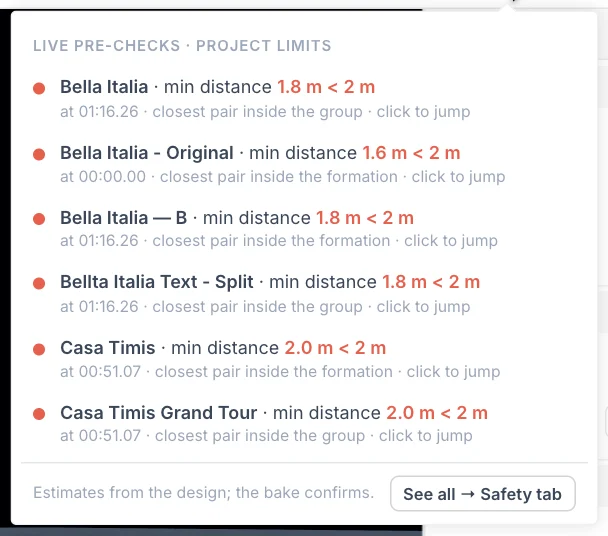
The Safety button checks your design against the project limits while you work.
| Button shows | Meaning |
|---|---|
| Red with a number | That many checks are more than 10% past a limit. |
| Amber with a number | That many checks are past a limit, by up to 10%. |
| Green with a check mark | Every check is within its limit. |
Click it to see up to six rows, worst first. Click a row to move the playhead to that moment and select the element. See all → Safety tab opens the full list in the bottom panel. The menu header tells you whether project limits are active; without a Launch Pad there are no limits to check against.
DANGER
These checks are estimates from your design. Only the bake confirms real flight values. See Safety checks.
Bake Show
Bake Show is the filled orange button. It saves your changes, then the bake engine calculates every drone's flight. The playhead stays where it is, so you can look at the same moment in the finished bake. If your latest changes cannot be saved, the bake stops so that it never runs on old data. A local draft cannot be baked.
| Button state | Meaning |
|---|---|
| Bake Show | Ready to bake. |
| Baking… with a percentage | The bake is running. |
| Loading… with a percentage | The finished bake is downloading. |
| Bake failed | Something went wrong. A message explains why, and clicking the button tries again. |
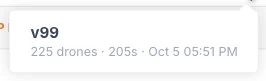
The small caret on the right lists your earlier bakes, with the version, drone count, length and date of each. Click one to load it. If you have more than 10 bakes, More… opens the full list.
In bake playback the button becomes a version badge such as Bake v3 with an Exit button beside it. See Baking and playback.
Help
The question mark at the far right opens a short menu: Keyboard shortcuts, Documentation, which opens this guide in a new tab, and Ask the assistant when the assistant is available. See Keyboard shortcuts.
Next
Learn to move around the 3D view in Viewport and navigation.