

Appearance
Audio
On this page you will add your soundtrack and line it up with the timeline.
A show has one Audio element. It can hold many sound clips, each with its own file, so you can build a soundtrack from separate pieces. It is not part of the 3D scene. It plays in sync with the playhead while you edit and during baked playback.
Add a soundtrack
- Open the Add menu and choose Audio. If the show already has one, the app tells you to add clips to it instead.
- In the timeline, right-click the Audio 1 track at the time the sound should start, and choose Add Audio. A clip appears, named
Audio (no file). - Select the clip. The Audio Clip section appears in the Properties panel.
- Click Choose file and pick a sound file. The clip resizes to the file's length and draws its waveform.
You can pick any audio file your browser can read. If it has no readable length, the app shows an error.
Audio settings
Select the Audio element to get an overview. There is no Transform section, because audio has no position.
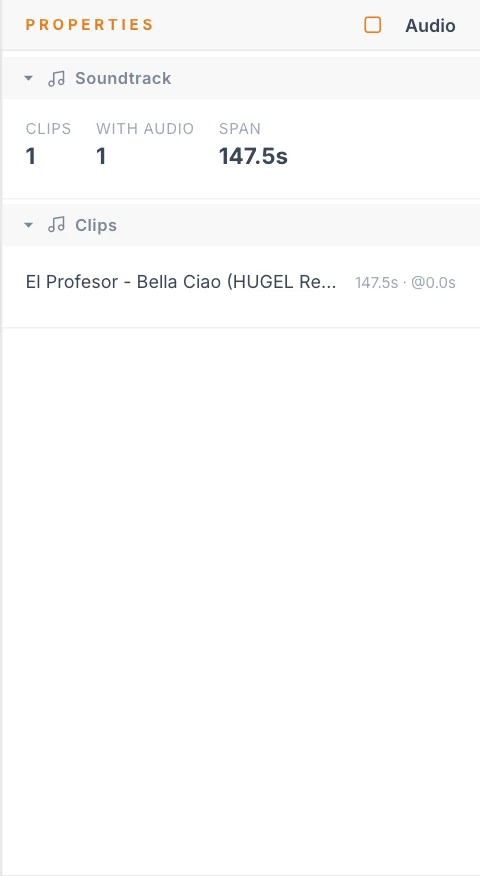
The Soundtrack section has three read-outs:
| Read-out | Meaning |
|---|---|
| Clips | The number of audio clips. |
| With audio | How many of those clips have a file. |
| Span | The time from the start of the first clip to the end of the last, in seconds. |
The Clips section lists each clip with its file name, its length and its start time, such as 184.0s · @5.0s. A clip with no file shows as Empty clip. Click a row to select that clip.
Clip settings
| Setting | What it does | Default |
|---|---|---|
| File name | The current file, or No file chosen. | |
| Choose file / Replace | Picks a file, or swaps the existing one. | |
| File length | A read-out of the whole file's length. | |
| Offset (s) | When the clip starts on the timeline. Minimum 0, steps of 0.1. | The time you clicked |
| Clip length | A read-out of the clip's length. | The file's length |
Trim and move
The clip in the timeline is your editor.
- Move: drag the clip, or type a new Offset (s).
- Trim: drag either edge of the clip. This hides part of the file and does not change the file itself. The clip cannot get longer than its file.

Layer several sounds
Each clip carries its own file, so you can place a voice-over, a fanfare and a music track as separate clips.
- Clips on one track cannot overlap.
- To overlap sounds, add another track. Select the Audio element, then use the + (Add channel) button in the Channels header of the timeline. Clips on separate tracks play together.
Listen
Press play and the sound follows the playhead, in both the editor and baked playback. Use the speaker button in the timeline's transport bar to mute or unmute. A small spinner next to it means audio is still loading, and playback may be silent until it finishes.
Files upload when the show is saved, so others who open the show hear them too. When you render a video, you can include the audio.
Tips
- Add the music first, and time your formations to it.
- Use the waveform to line up clips with the beats in the music.
- Start your first sound clip where you want the show's opening moment. Offset the clip rather than padding the file with silence.
Next
Start animating with Drone events, then Colours.