

Appearance
Drones panel
The Drones panel lists every drone in your fleet. Use it to hide drones in the view, which helps you find one drone in a busy moment of a bake.
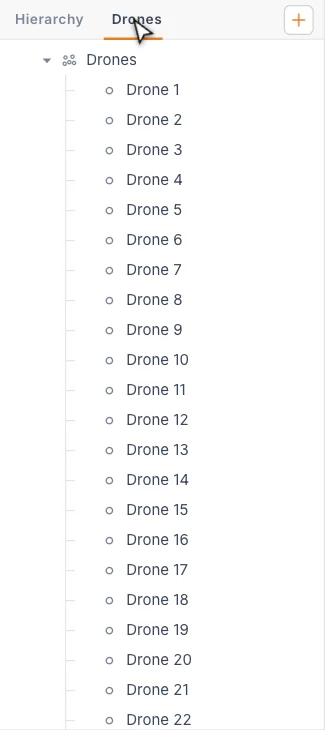
Open it with the Drones tab at the top of the left panel. During bake playback the left panel switches to this tab by itself.
Where the drones come from
The fleet comes from your Launch Pads, with one drone per pad position. If you have no Launch Pad, the panel reads No drones and asks you to add one. Change the fleet size on the Launch Pad, not here. See Launch Pad.
The list has one parent row, Drones, with a row for each drone inside it: Drone 1, Drone 2, and so on. Long fleets scroll smoothly. Click the arrow on Drones to collapse the list.
Hide drones
| Control | What it does |
|---|---|
| Eye on the Drones row | Hides or shows the whole fleet, and the Launch Pad surfaces with it. |
| Eye on a Drone N row | Hides or shows that one drone. |
A drone is drawn only when both its own eye and the Drones eye are on. To see drones in the viewport at all, use the Drones view.
The eyes work in the live preview and in bake playback. The drone count in the status bar counts drones whose own eye is on.
TIP
Eyes only change what you see. A hidden drone is still part of the show and still flies.
Clicking a drone row highlights the row. It does not select anything in the viewport, and no settings open for it.
Find the drones behind a number
After a bake, you can jump straight to the drones behind a flight value. This is called analyzing drones.
- Bake the show, or load a bake. See Baking and playback.
- In the Statistics panel on the right, find the Overall group.
- Click a value, such as Max Speed.
The playhead jumps to the moment that produced the value. The drones involved turn amber and the rest dim. Min Distance points at the pair of drones that came closest. Duration has no moment to jump to, so it cannot be clicked.
A small bar appears under the bake banner, naming the drone number and the value, for example Analyzing drone #12 · Max Speed. Press Exit analyze to clear the highlight.

The drone number in the bar matches the Drone N row in this panel. To read numbers in the viewport as well, turn on Drone labels in the viewport settings.
Tips
- To study a crowded moment, hide the drones around the ones you care about.
- Eyes are remembered in this browser, so check for hidden drones if the count in the status bar looks low.
Next
Edit what you select in the Properties panel.