

Appearance
Pyro report
On this page you learn how to create the printable Pyro report: the paperwork your pyro technicians use to load the drones and place them on the ground. Pyro means the fireworks and smoke effects carried by drones.
The report tells them how much product to bring, what goes on each drone, where each drone stands, and when each charge fires.
Create the report
The report reads the Pyro loadout of each Launch Pad, so fill that in first. Then:
- Bake your show, or load a bake.
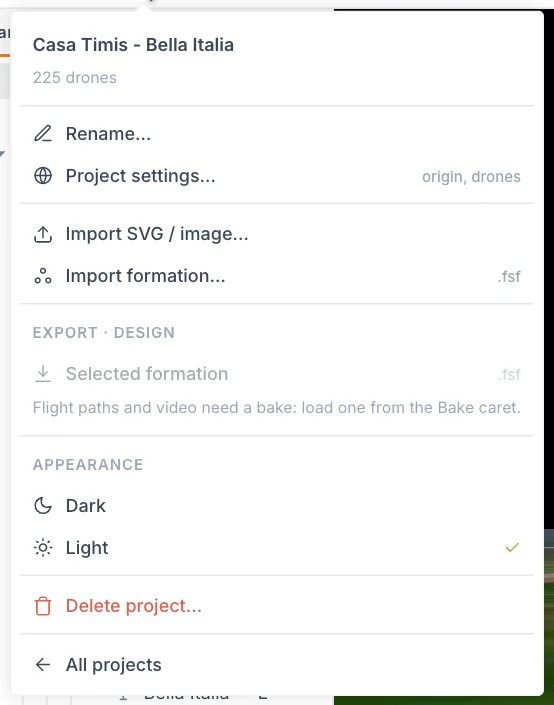
- Click the show name at the top left to open the Project menu.
- Under Export · bake v3 (with your version number), click Pyro report.
- The report opens in a new browser tab, and the print dialog opens after the map has loaded.
- Choose to save as PDF, or print it.
Nothing happens when you click?
Your browser may have blocked the new tab. Allow pop-ups for Celestium and click Pyro report again.
The report is laid out for A4 landscape.
What is in the report
The title carries your project name, followed by the bake version, the date and a reminder of how to read times.
First page
| Section | What it holds |
|---|---|
| Show summary | Show duration, Launch pads, Drones total, Pyro-equipped drones, Ignitions in the show, Firing window, Site (lat, lon) |
| Sign-off | Lines to fill in by hand: Loadout prepared by, Placement checked by and Safety officer, each with a date and signature |
| Product stock | Each product and its Charges loaded, with Total charges. This is the stock to bring. |
| Product data sheet | Each product from your Pyro catalog with its Type, Burn time and Effect size |
One section per Launch Pad
Each Launch Pad gets its own section with a map and a table.
The map is a satellite view with north at the top, showing the real position and rotation of the pad. Each drone is a numbered square, coloured by its first loaded product. Squares with no product are white. The squares are drawn larger than life so the numbers stay readable. A north arrow and a 20 m scale bar are included. If no map image is available, the squares are drawn without one.
The table has one row per launch position.
| Column | What it shows |
|---|---|
| Launchpad | The drone number, as painted on the grid |
| Channel 1, Channel 2, Channel 3 | The product loaded on that channel, with its firing time |
A channel here is one of the three pyro outputs on a drone. A firing time reads like 1:23.4 · f2502: minutes and seconds, then the frame number at 30 frames per second. A dash means the channel is empty. A product with no time is loaded but does not fire in this show.
Rows with pyro are tinted so they stand out.
Make sure it matches the flight
Products, loadouts and the map come from your current design. Firing times come from the loaded bake.
Check the report against the flown bake
Create the report right after baking, from the same version you export. If you load an older bake, or the loadout changed after the bake, the report can mix a new loadout with old timing.
If every channel shows a dash and the stock table is missing, the Launch Pads have no pyro loadout. Add one, bake again, and create the report again.
The report does not warn about skipped ignitions. The FSP export does, so run it too and read any warning.
Tips
- The square number, the Launchpad number and the drone number are the same. Use Numbering along on the Launch Pad if your team prefers a different numbering direction, before you bake.
- Compare Ignitions in the show with what you designed. A lower number than expected is worth checking.
Next
Share formations with other shows.