

Appearance
Point clouds
On this page you will turn any shape into points you can edit by hand, or place drones one at a time.
A point cloud is a set of points where each point is one drone with its own colour. Unlike a shape, it has no size or distribution settings. The points are the formation, so you control exactly where every drone goes.
Use one when a shape is nearly right but a few drones sit badly, or when you trace a drawing by hand.
Convert to a point cloud
- In the Hierarchy, right-click a shape, text, spline or path.
- Choose Convert to Point Cloud.
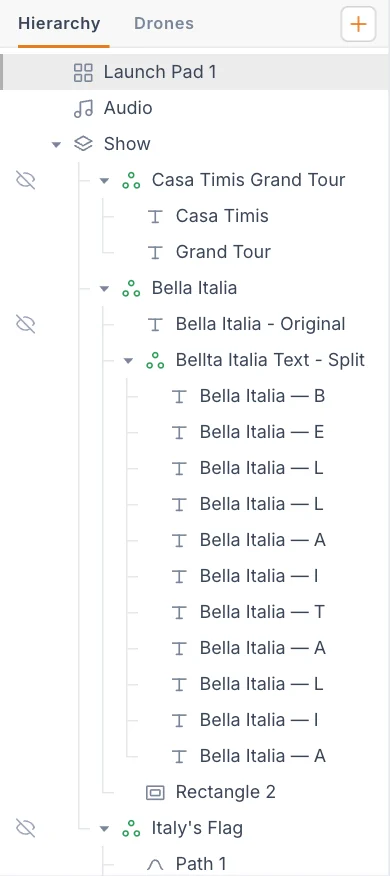
The app creates a new element named after the original, with (points) added. It sits next to the original, inside the same group if there is one. The original is hidden, not deleted.
- The points are the original's slots at the current playhead time, with their colours and position. Move the playhead first if the shape is animated.
- The cloud forgets how the shape was made. Changing the original later does not update the cloud.
- The cloud does not take over the original's timeline clips. Add colour and motion clips to the cloud.
Going back
To return to the original, delete the cloud and show the original again. If you show the original without removing the cloud, both add their slots to the formation.
This menu item is not offered on a Launch Pad, a Formation group or a Point cloud.
Start from nothing
To place drones one by one, open the Add menu and choose Point cloud. It starts empty. Use the add mode below to place points. This suits tracing over a reference image plane.
Edit points by hand
- Select the Point cloud.
- Click Edit points. The button is at the top of the viewport and in the Properties panel. A toolbar replaces the button.
- Choose a mode on the toolbar.
- Press Esc or click the check mark when you finish.
| Toolbar button | What it does |
|---|---|
| Select / move | Click a point, then drag its gizmo. |
| Add points | Each click in the viewport places a new drone. |
| Link | Chains points into a guideline. See Guidelines. |
| Point count | A read-out, such as 120 pts. In link mode it also shows how many points are linked. |
| Distribute | Moves the points of every guideline to even spacing. |
| Remove | Deletes the selected point. You can also press Delete or Backspace. |
| Done | Leaves edit mode. You can also press Esc. |
How Add points works
A viewport click has no depth, so the app needs a way to decide how far away the new point goes. It uses a flat sheet facing the camera, passing through the selected point. If no point is selected, the sheet passes through the middle of the cloud.
The new point is selected straight away, so you can drag its gizmo to fix the depth. It takes the colour of its nearest neighbour. The first point in an empty cloud is white.
For a flat design, look straight at it with the view cube before you add points. They will all land on the same plane.
Guidelines
A guideline is a saved chain of points. It turns a rough hand-placed line into an evenly spaced one, without placing every drone again.
- In edit mode, click the Link button.
- Click points in the order they should run.
- To remove the last point from the chain, click it again.
- To close a loop, click the first point again. The chain needs at least three points.
- Press Enter to save the chain. To throw it away, press Esc.
- Click Distribute. Each guideline's points move to even spacing along a smoothed curve.
Open chains keep their end points in place. Loops spread all the way round. Distribute needs at least three points in a guideline.
Leaving link mode saves a chain of two or more points. So does finishing edit mode. While you are linking, Delete does not remove points.
Guidelines are saved with the element, and moving a point reshapes its guideline. If you delete points and a guideline drops below two points, it is removed.
Point cloud settings
| Setting | What it does | Default |
|---|---|---|
| Points | A read-out of the drone count. With culling on, it shows kept points / all points. | |
| Edit points | Enters edit mode. | |
| Cull spacing (m, 0=all) | Thins a dense cloud by dropping points closer than this to a kept one. Hard colour edges are preserved, and the dropped points are kept in case you lower the value. Minimum 0, steps of 0.25. | 0 |
| Guidelines | The number of saved guidelines, then one row for each with its point count. loop marks a closed one. | |
| Wave button | On a guideline row: distributes that guideline only. Needs at least three points. | |
| ✕ | On a guideline row: deletes the guideline. The points stay. | |
| Guideline smoothing | How much a guideline is smoothed before it is distributed, from 0 to 10. | 2 |
The guideline items appear once you have saved one. A Point cloud has no Color field, because every point has its own colour. To recolour, use colour clips or the Colours Manipulator.
Setting Cull spacing (m, 0=all) to at least your Min separation (m) is a quick way to clear crowded spots. It lowers the drone count, so check the Points read-out.
Tips
- Fix shapes in their settings as far as you can before you convert. Hand edits cannot flow back into a shape.
- Keep a hidden copy of the original. It is your way back.
- A Point cloud flies like any other element once it is inside a Formation group.
Next
Use motion made outside the app with Animated paths.