

Appearance
Algorithm Bypass
This page shows you how to stop the bake from changing a precise piece of animation. An Algorithm Bypass clip turns off selected flight limits for one stretch of time. Use it rarely, and with care.
During the bake, the routing moves drones to keep them apart and inside their speed limits. That is what you want almost all the time. But it can push a precise figure out of shape, for example text that rotates or tight geometry. A Bypass clip lets you say: over this stretch, ignore these limits and fly the drones as drawn.
Bypass removes flight protection
While a limit is bypassed, nothing enforces it. With Collision avoidance ignored, nothing keeps two drones apart. With speed or acceleration ignored, the flight may ask for more than your drones can do. With every box ticked, the drones fly your exact animation with no protection at all, and a mistake in it is flown as is.
Only bypass motion you know is already safe. Keep the clip as short as you can. Never use it to hide a failing check. If the show does not pass without it, fix the design.
When to use it
Use it when all of these are true:
- A figure is being distorted during the bake, and you have confirmed this on playback.
- The animation already keeps drones apart by more than your minimum separation.
- Its speeds and accelerations are within what your aircraft can fly.
Do not use it for transitions between formations, during takeoff or landing, or to fit a flight into a clip that is too short.
Add a Bypass clip
- Select the Launch Pad in the Hierarchy panel.
- Right-click the Drones 1 lane at the time the drones are already in formation, after the Track clip that brings them there.
- Choose Add Algorithm Bypass.
- Drag the edges of the clip so it covers only the precise part. A new clip is 4 s long.
- Click the clip and set the checkboxes in the Properties panel.
- Bake and check the result.
The clip's settings look like this:
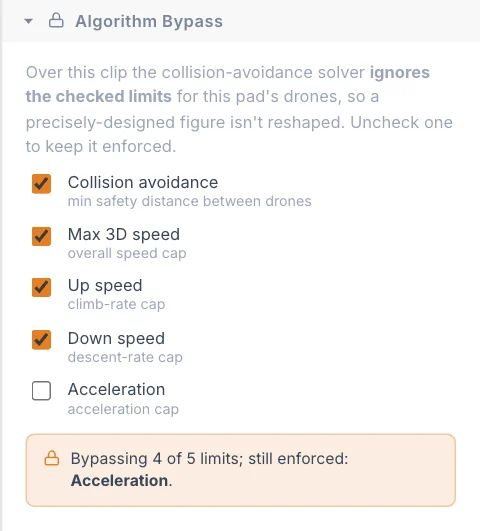
The clip affects only the drones of this Launch Pad. Drones keep following their formation during the clip, and the next clip starts from wherever the Bypass clip left them.
The checkboxes
A ticked box means that limit is ignored during the clip. All five are ticked on a new clip.
| Checkbox | What is ignored | Default |
|---|---|---|
| Collision avoidance | The minimum safety distance between drones. | Ticked |
| Max 3D speed | The overall speed cap, including horizontal speed. | Ticked |
| Up speed | The climb-rate cap. | Ticked |
| Down speed | The descent-rate cap. | Ticked |
| Acceleration | The acceleration cap. | Ticked |
Untick a box to keep that limit enforced. The note under the boxes always tells you the current state.
Full bypass: all five ticked
The note reads Full bypass. The routing is off for these drones, and each one sits exactly on its authored position on every frame. Your animation must keep the drones apart by itself.
Make sure the drones have fully reached the formation before the clip starts. A drone still on its way would be placed straight onto its authored position.
Partial bypass: some ticked
The note lists how many limits are bypassed and which are still enforced. The routing keeps running, with only the ticked limits relaxed.
Start with the least you need
Try ticking only Acceleration first, then add more only if the figure is still distorted. Leave Collision avoidance unticked unless you have a clear reason.
Check the result
The live preview before a bake never moves drones to keep them apart, so it always shows your animation as authored, with or without a Bypass clip. Only a bake shows what the clip changes.
- Bake the show, and watch the Bypass stretch on playback.
- Open the Checks tab. It charts the paths as they will really be flown, so a Bypass that breaks a limit shows up there.
- Look closely at Min Distance across the clip, and at the moments right before and after it.
See Safety checks for how to read the charts, and Flight limits and separation for what the limits mean.
Tips
- Use the clip's Disable option (right-click) to bake with and without it, and compare.
- Try slowing the animation first. A figure that moves within the limits needs no Bypass.
- Add a short margin of held time after the Track clip so the drones have settled.
Next
Check and deliver your show, starting with Safety checks.