

Appearance
Export FSP flight files
On this page you learn how to export a baked show as FSP flight files. FSP (.fsp) is the flight file format of Celestium. It holds what one drone must do during the show: where to fly, what colour to show, and when to fire pyro.
You get one .fsp file per drone, all packed into one zip file.
Flight files control real aircraft
Export only from a bake you have checked. Read Safety checks first, and confirm the bake version in the Project menu before you export.
Export your files
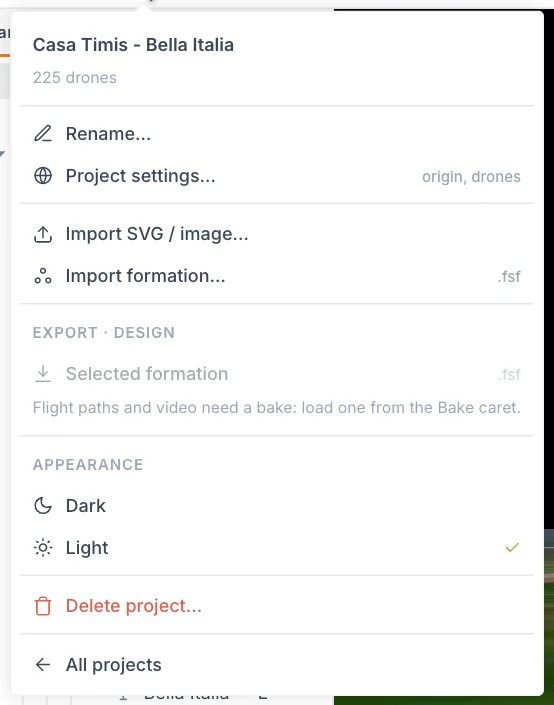
You need a baked show first. If the Project menu says Flight paths and video need a bake, see Baking and playback.
- Load the bake you want to fly. You must be in Bake mode.
- Click the show name at the top left to open the Project menu.
- Under Export · bake v3 (with your version number), click Flight paths…
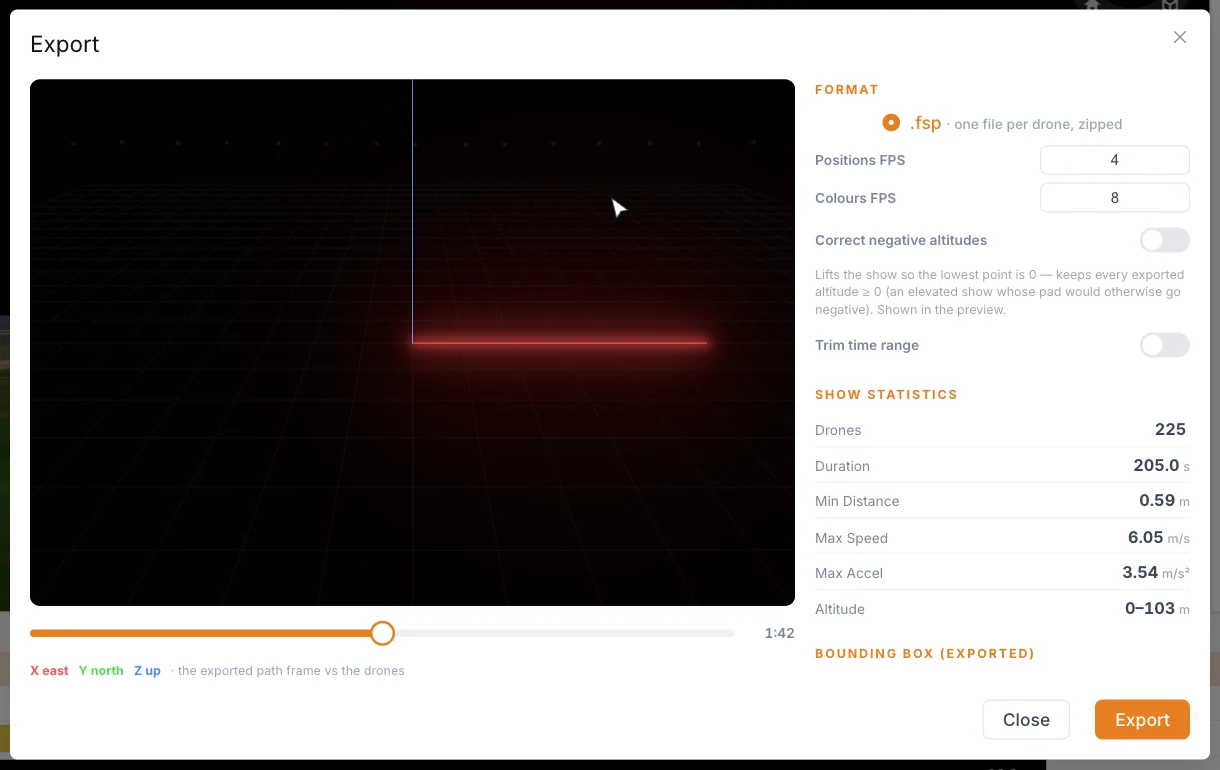
- Set the frame rates and options.
- Scrub the preview and check the numbers on the right.
- Click Export.
- Wait for the download.
Settings
| Setting | What it does | Good starting value |
|---|---|---|
| Format | The file format: .fsp, one file per drone, zipped. | .fsp |
| Positions FPS | How many positions per second are stored for each drone. 1 to 65. | 4, the default |
| Colours FPS | How many colours per second are stored for each drone. 1 to 65. | 8, the default |
| Correct negative altitudes | Lifts the whole show so its lowest point is 0. | Off, the default. See below. |
| Trim time range | Exports only a slice of the show. | Off, the default. See below. |
FPS means frames per second. Positions and colours have separate rates, so you can store fast colour changes without storing more positions.
- A colour change shorter than one colour frame can be missed. If you use quick flashes or fast effects, raise Colours FPS.
- Pyro cues use the Colours FPS rate as well. At 8 FPS a cue can land on steps of 1/8 of a second.
Correct negative altitudes
Some shows, such as an elevated show with its pad below the design level, export with altitudes under 0. Turn this switch on to lift everything by the same amount, so that every exported altitude is 0 or more. If nothing is below 0, the switch changes nothing.
The preview and the bounding box show the result straight away.
Trim start and end
Turn on Trim time range to export only part of the show. Set Start (s) and End (s) with the boxes or sliders.
The exported paths start at time 0 at your Start. A common use is to cut the launch-grid phases at the beginning and end of the show, when the drones use automatic grid-generation routes.
If you trim, any pyro ignition outside the range is left out.
The preview
The left side of the dialog shows your exported drones as glowing points, in a small 3D view. It shows what will be written to the files.
- Drag in the view to look around.
- Move the slider under the view to scrub through the show. The time appears next to it.
- Read the axes: X east (red), Y north (green), Z up (blue).
Any heading (rotation) of the Show is removed in the exported positions, so formations point forward. Nothing else is turned or moved.
The panel updates shortly after you change a setting. Computing export… appears while it works, and the Export button waits for it.
Show statistics and bounding box
The right side of the dialog has two groups of numbers.
Show statistics repeats the key numbers of the bake: Drones, Duration, Min Distance, Max Speed, Max Accel and Altitude.
Bounding box (exported) gives Size X, Size Y and Size Z in metres. This is the size of the box that holds all the exported positions.
What is in the zip
- One
.fspfile per drone, named by drone number:1.fsp,2.fsp, and so on. The numbers follow the launch grid, as set by Numbering along on the Launch Pad. - If the show fires pyro, a file named
pyroEffects.json. It lists each firing with its product name and colour. Keep it in the same folder as the.fspfiles.
The zip is named after your show and bake version.
While it exports
The progress bar goes through Preparing…, Sampling trajectories…, Smoothing accelerations…, Zipping… and Done, with an encoding step before Zipping…
During Smoothing accelerations… the app corrects short moments where a drone would pass the Acceleration limit. It keeps drones under the lowest limit across your Launch Pads, and does not let the correction bring them closer than the lowest Min separation. An Algorithm Bypass clip with Acceleration ticked keeps its motion as designed. The statistics in the dialog show the bake, before this step.
To stop, click Cancel. While an export runs you cannot close the dialog any other way, and trying shows "Cancel the export first".
When it ends, a message confirms the number of paths and pyro cues.
Pyro cues
A pyro clip on a Launch Pad fires a specific drone. A pyro clip on a formation fires a slot, so the export finds the drone nearest to that slot at the moment of ignition.
If an ignition cannot be placed, you see a warning with the number of ignitions skipped. This happens when:
- no drone is within 2.5 m of the slot at ignition
- the ignition is outside the trim range
- the drone has no loaded charge of that product left
Do not fly a pyro show with this warning unresolved. Check the timing of your pyro clip against the moment the drones reach the formation, and check the Pyro loadout of the Launch Pad.
Tips
- Export again whenever you bake again. Files come from one bake version and do not update.
- Keep the zip name, which holds the bake version, so you can tell which bake it came from.
- Open the Pyro report at the same time, so the paperwork matches the files.
Next
Create the Pyro report if your show carries pyro.